

Edit a branch schedule
The branch schedule defines when it is available to receive appointments. You can adjust each day separately or copy Monday's schedule to the rest of the week.
-
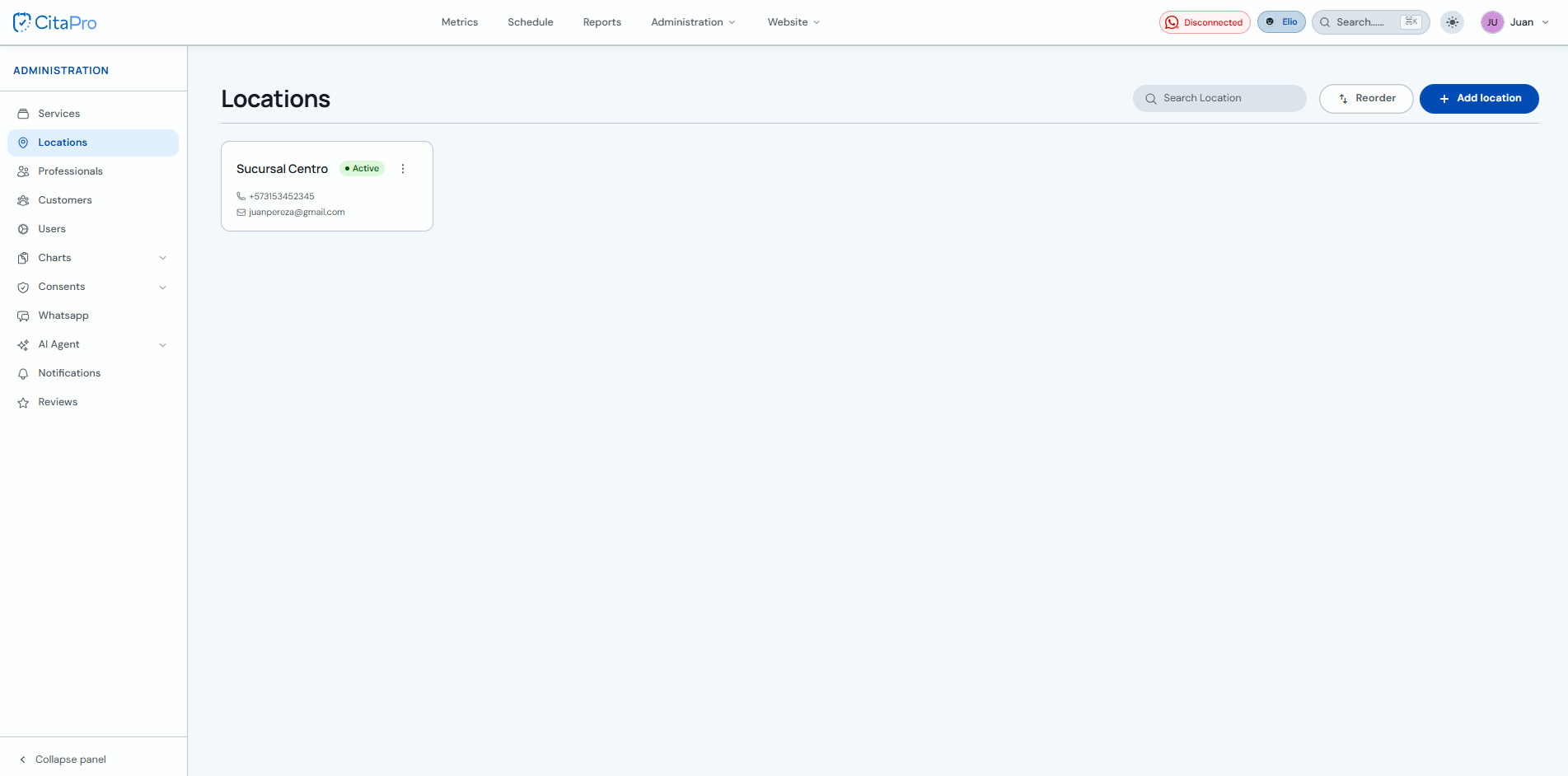
Go to Administration → Branches and find the branch whose schedule you want to change.
-
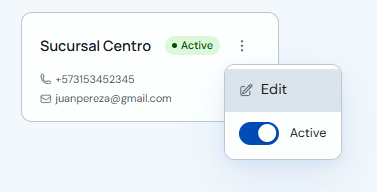
Open the branch three-dot menu and click "Edit".
-
Under "Schedule", set Monday with the start and end time. If you want to use that same schedule for every day, click "Autofill" and it will be applied to the rest of the week. Turn days on or off as needed and save changes.
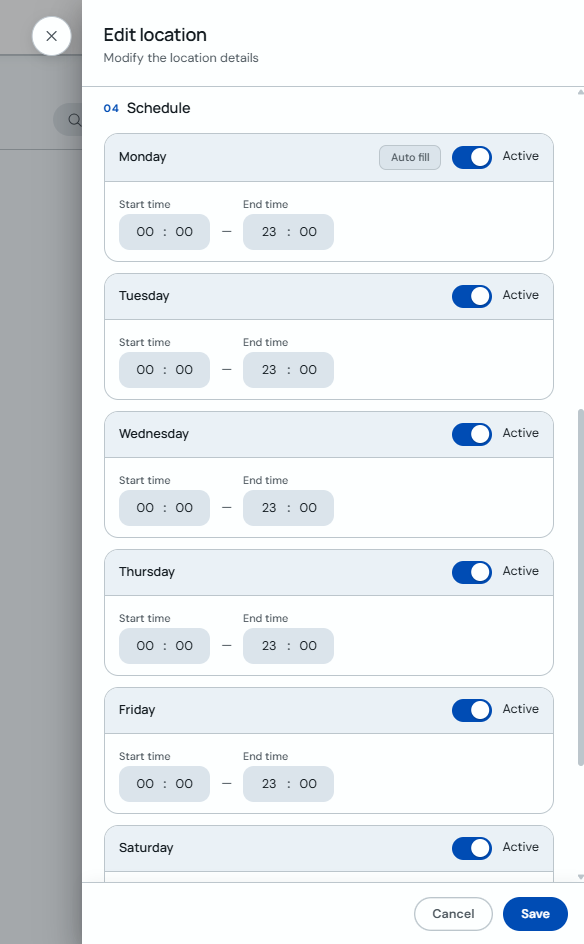
If a day should not receive appointments, turn off its "Active" switch before saving.