

Bulk actions
When you manage many services, you can select several and apply the same action without editing them one by one.
-
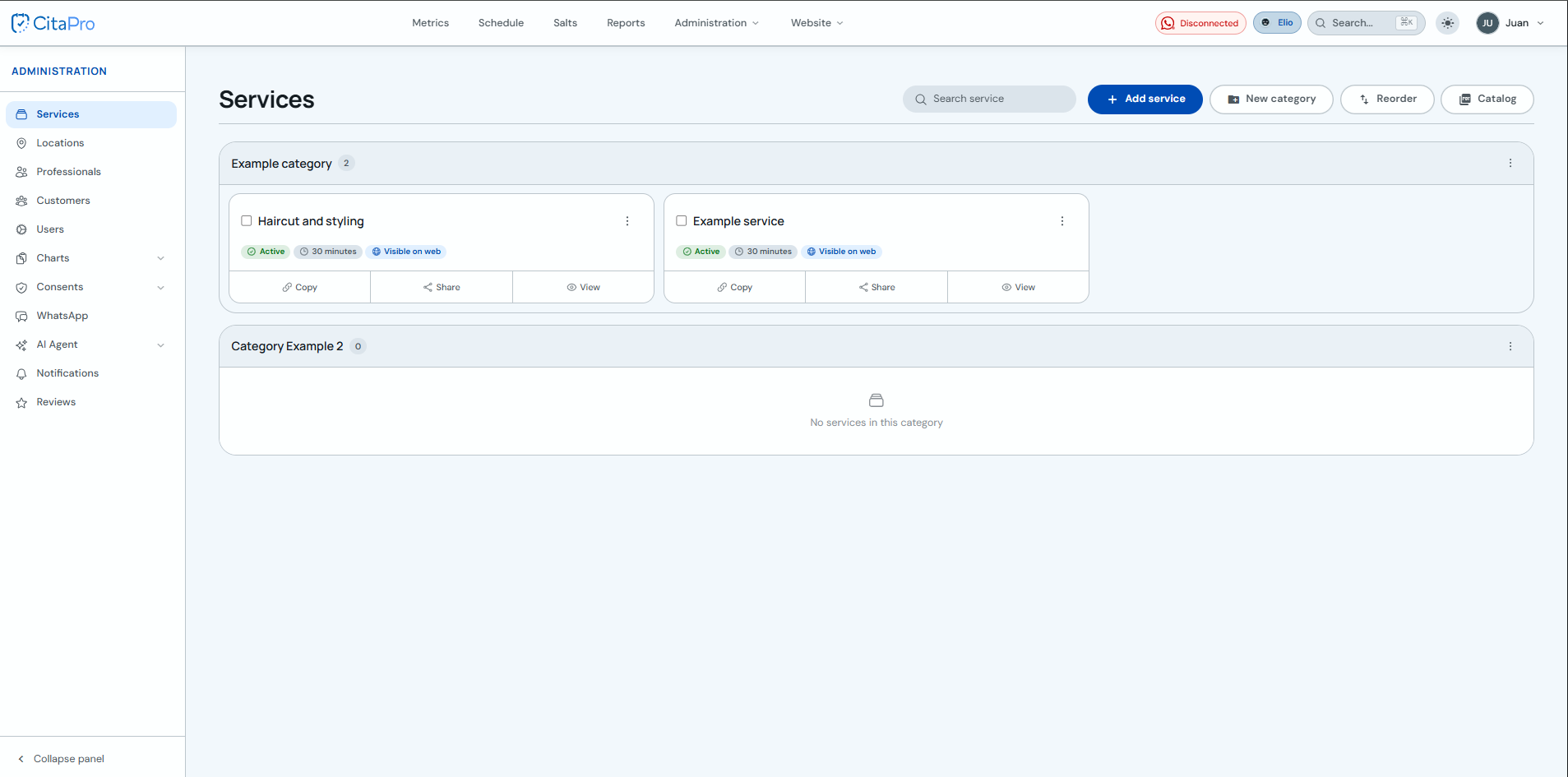
Go to Administration → Services. You will see your services organized by category, each on a card with a selection checkbox.
-
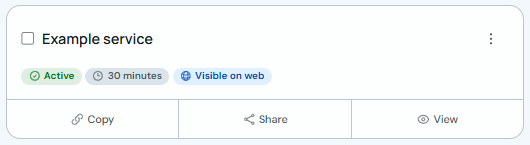
Check the box on the service or services you want to manage. You can also use "Select all" in the bottom bar.
-
In the floating bottom bar, open "Actions" and choose "Activate", "Deactivate" or "Delete" as needed. The bar shows how many services are selected.
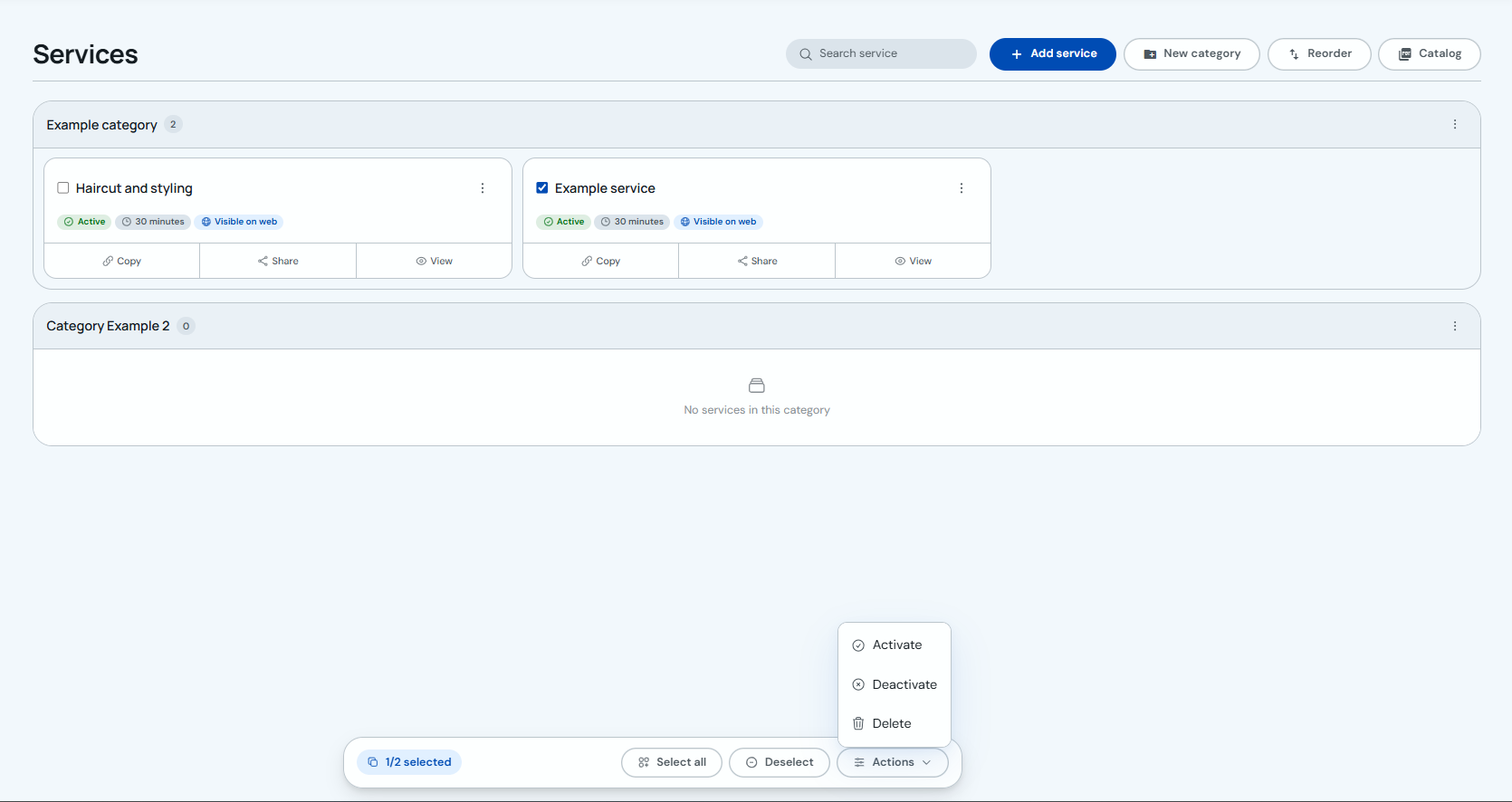
Deactivating a service hides it from bookings without removing it from the catalog. "Delete" is permanent—confirm first if the service already has linked appointments.
Deleted services in bulk cannot be recovered. Review your selection before confirming.