

Book from the public website
When a client opens your booking link (minisite), they can schedule an appointment without logging into CitaPro. Share the link from Settings → Website.
-
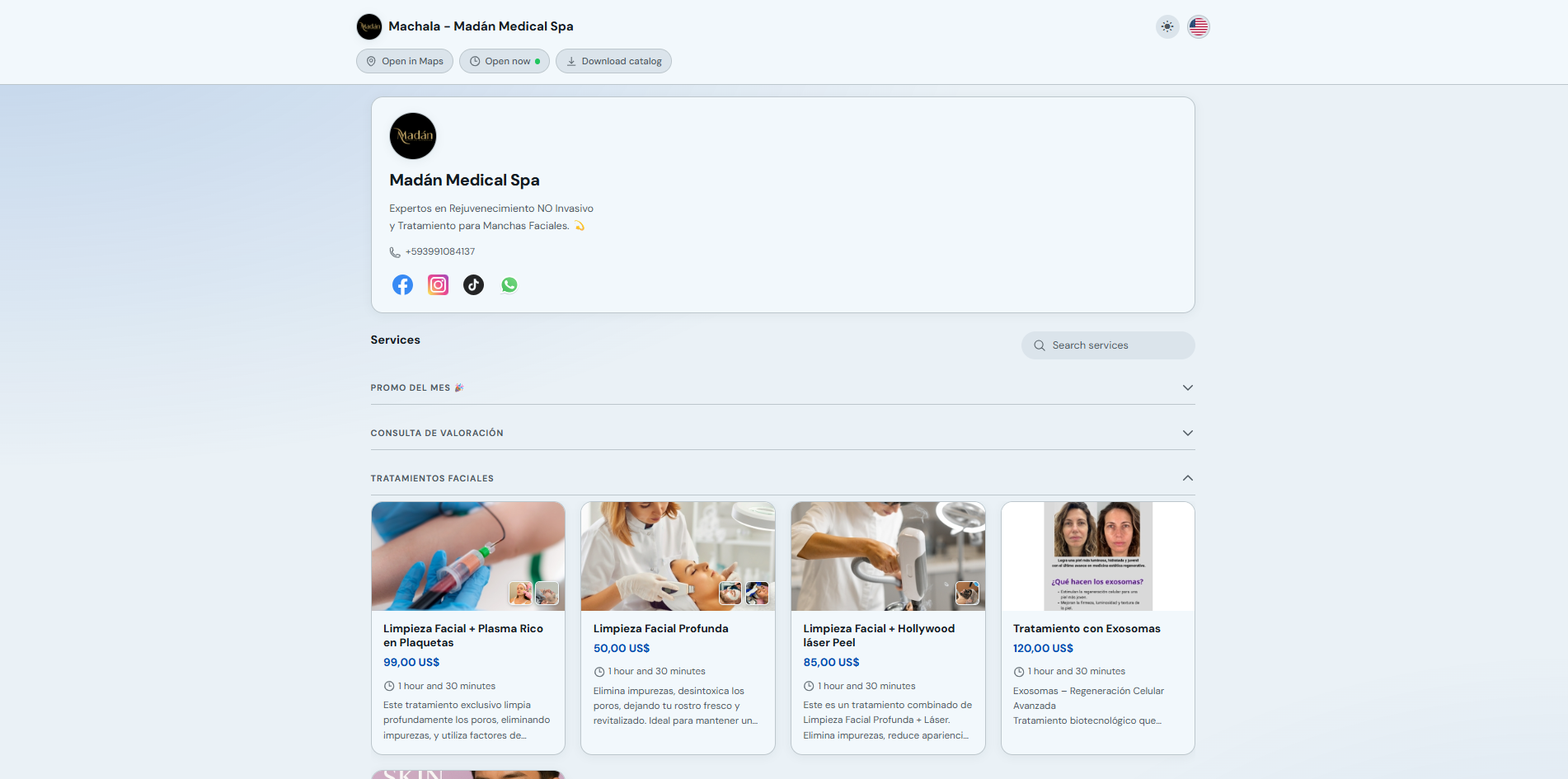
Open your business booking link. You will see location details, the service catalog by category and a search bar. Choose the service you want to book.
-
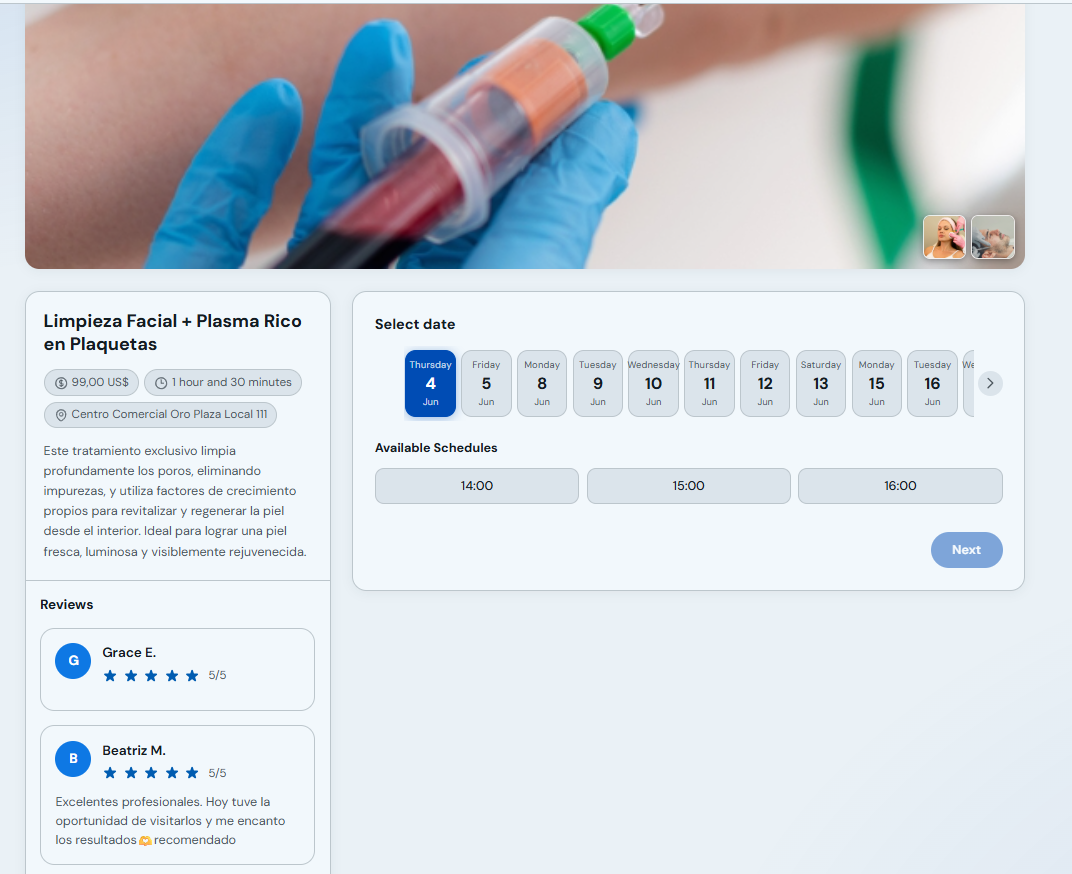
Click the service. The detail page opens with price, duration, location and reviews. On the right, under "Select date", pick a day from the date carousel.
-
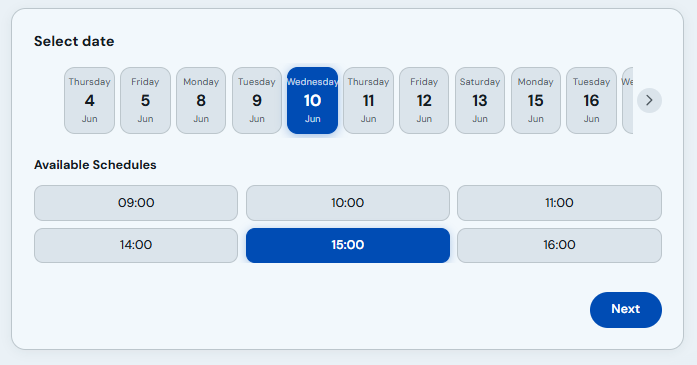
Under "Available times", select your preferred time and click "Next".
-
Fill in "Enter booking details": first name, last name, email, phone, whether you are a new or returning patient and an optional note. Click "Book" to confirm.
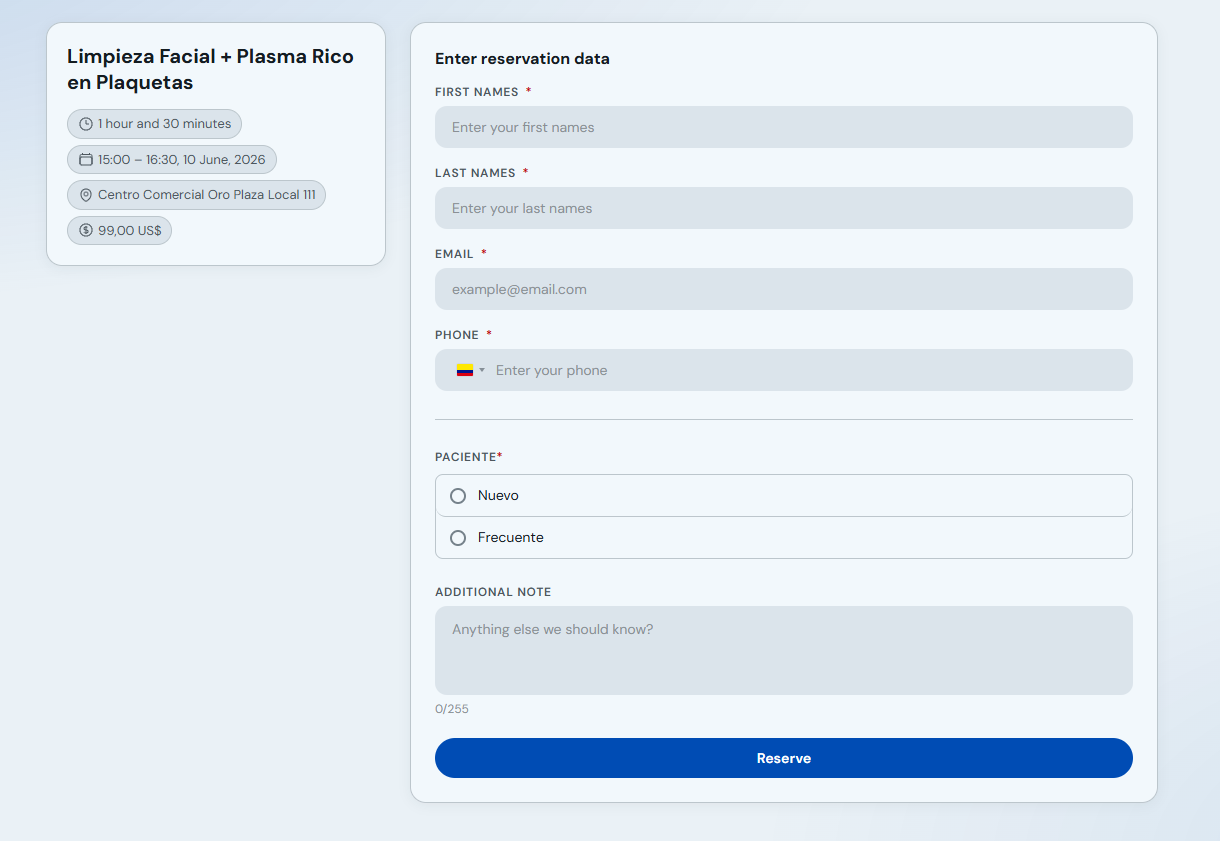
The appointment will appear on your Schedule under the "Online bookings" channel. If no times are available, check branch hours and professional availability in Settings.