

Filter the schedule view
In Agenda you can narrow what appears on the calendar using the top toolbar selectors and the "All filters" panel.
-
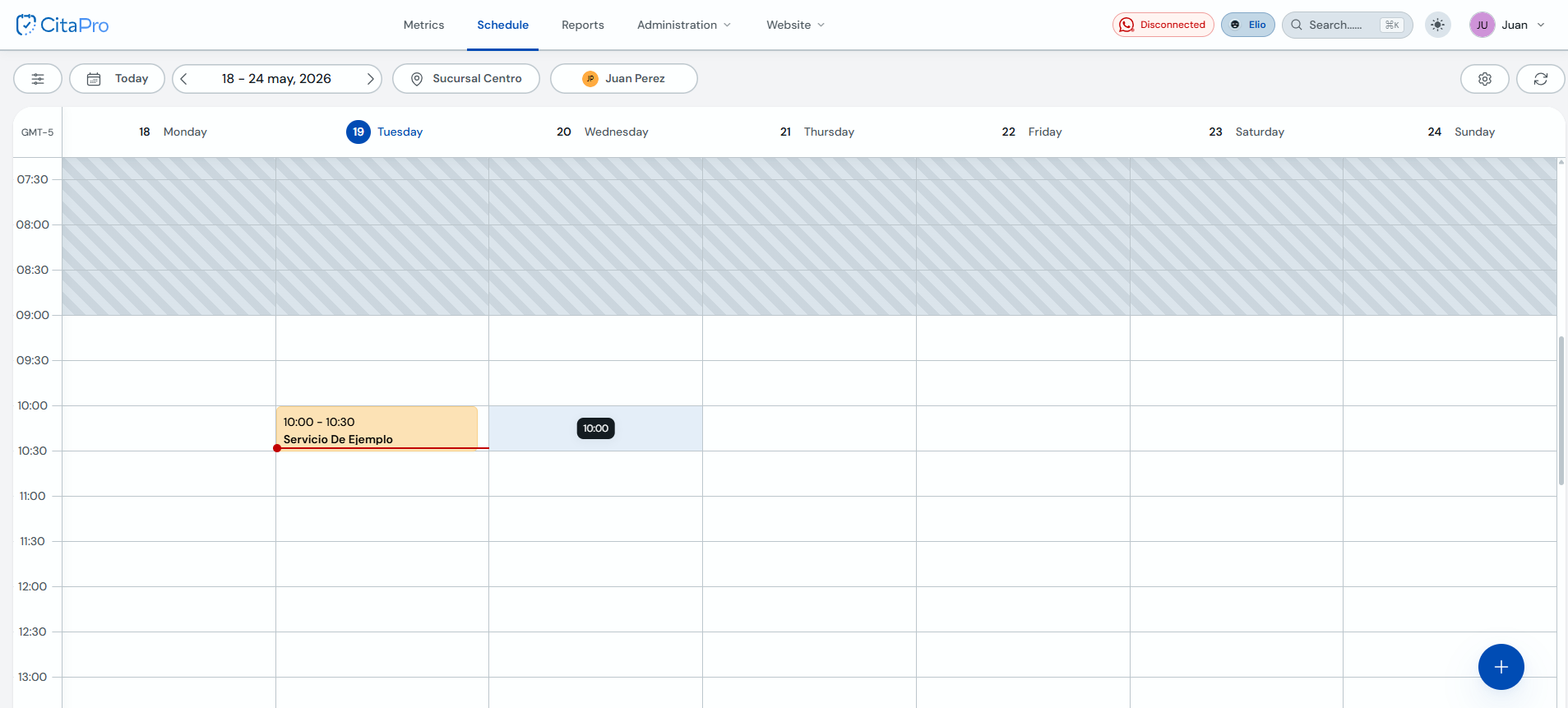
Go to Agenda. In the calendar toolbar you will find the filters button, "Today", the date range, location and professional.
-
Use the quick selectors: the sliders icon, "Today" to return to the current day, the date range arrows, the location dropdown and the professional dropdown.

-
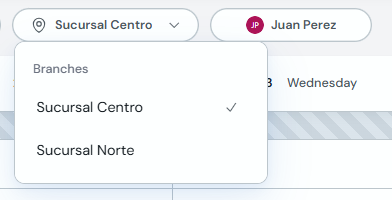
To switch locations, open the dropdown (pin icon) and choose the branch you want to see, for example "Centro Branch" or "Norte Branch".
-
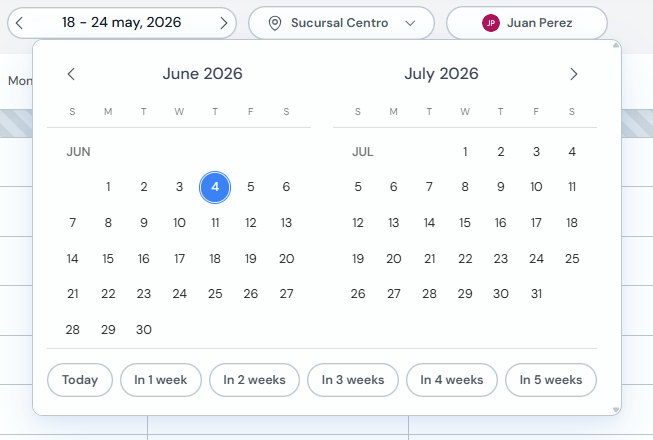
To jump to another date, click the date range. In the calendar pick a day or use the quick links ("In 1 week", "In 2 weeks", etc.).
-
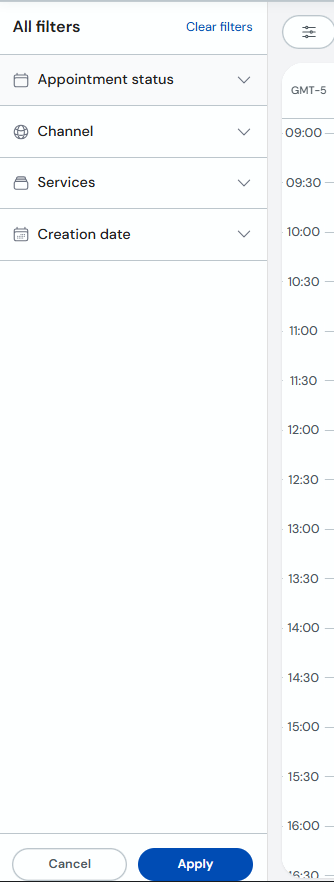
For advanced filters, click the sliders icon. The "All filters" panel opens where you can combine criteria and use "Clear filters" to reset.
-
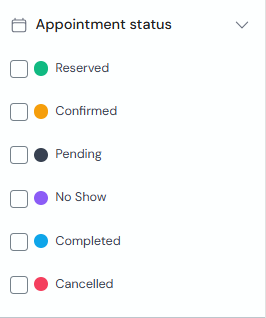
Under "Appointment status", check the statuses you want to see: Reserved, Confirmed, Pending, No-show, Completed or Cancelled.
-
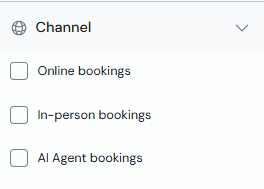
Under "Channel", select the booking source: online, in person or AI Agent.
-
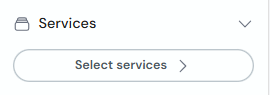
Under "Services", click "Select services" and choose one or more from your catalog to show only those appointments.
-
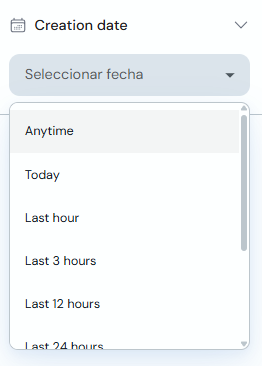
Under "Creation date", pick a time range (for example "Today" or "Last 24 hours"). When done, click "Apply" to refresh the schedule.
Toolbar location and professional filters combine with the panel filters. If the schedule looks empty, check that you do not have too many criteria active or tap "Clear filters".