

Cancel an appointment
-
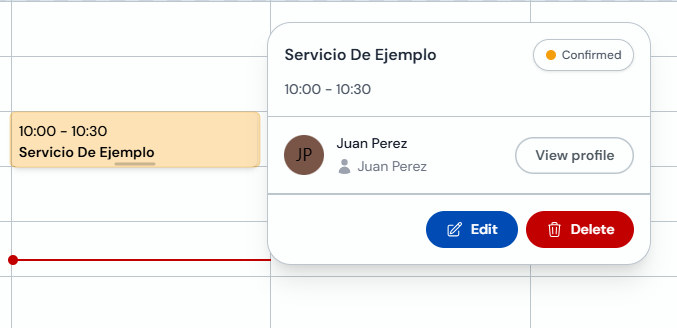
In Agenda, click the appointment to open the detail with "Edit" and "Delete" buttons.
-
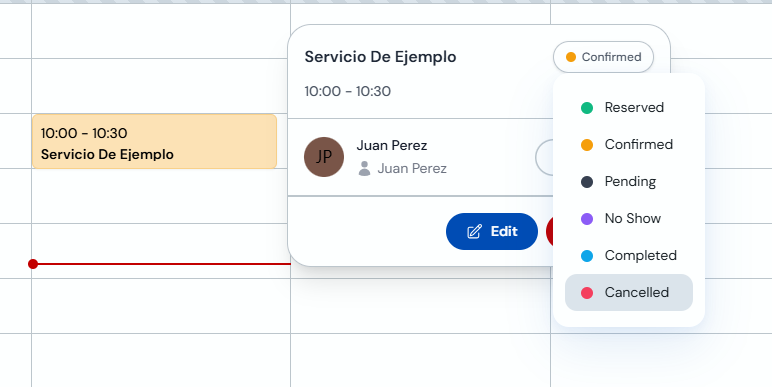
To mark it as cancelled without deleting: open the "Reserved" status and select "Cancelled".
-
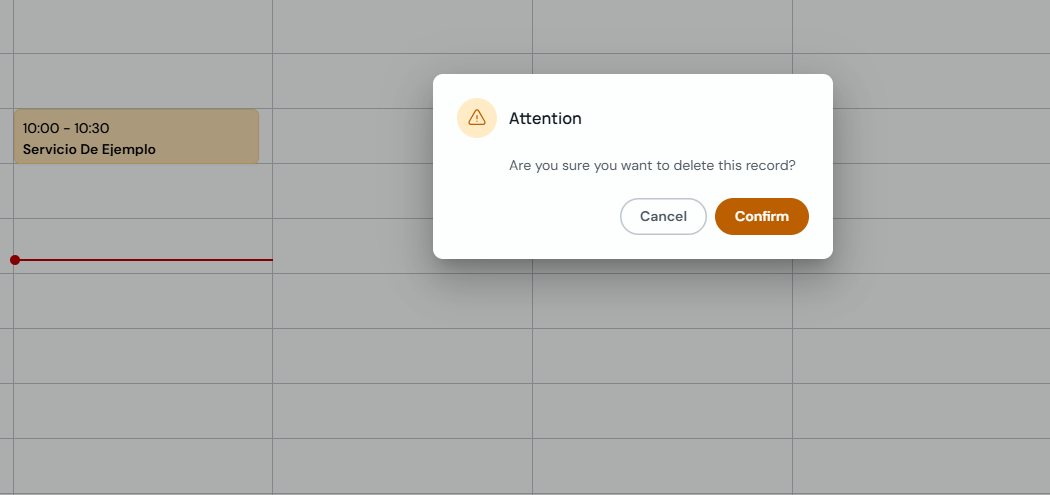
To remove it completely: click "Delete" and confirm in the "Attention" prompt.
Reschedule an appointment
-
Click the appointment and select "Edit" in the detail popup.
-
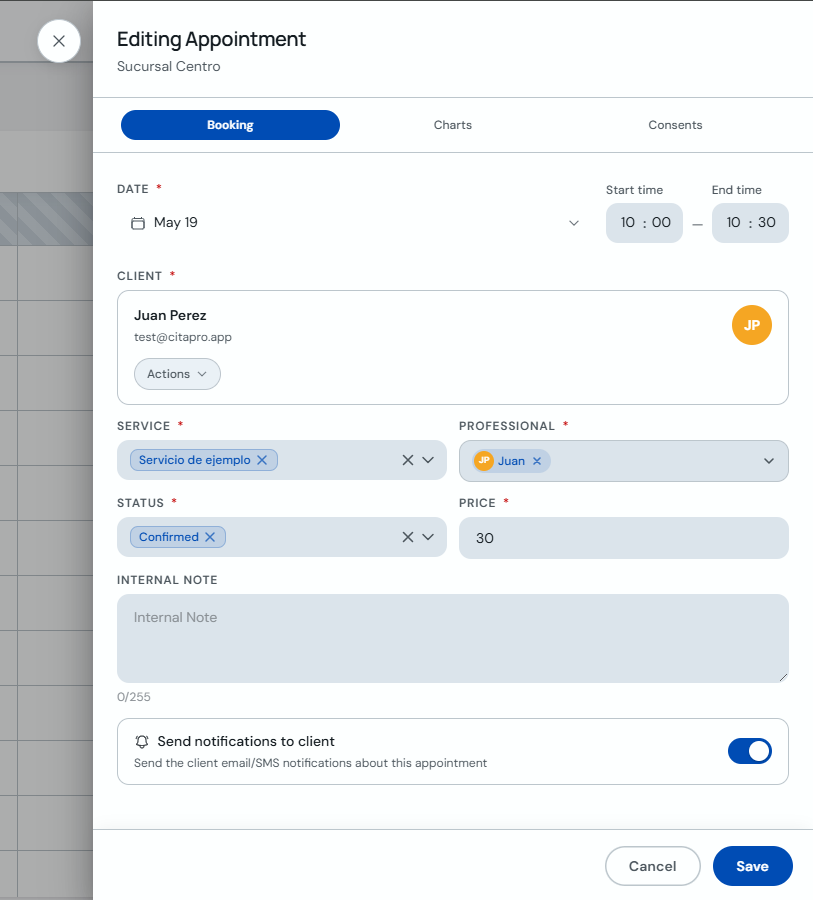
In "Editing Appointment", change the date, start or end time, professional or other details. Turn on notifications to alert the client and click "Save".
Appointments marked as "Cancelled" stay in the client history. If you delete them, they will no longer appear on the calendar.