
-
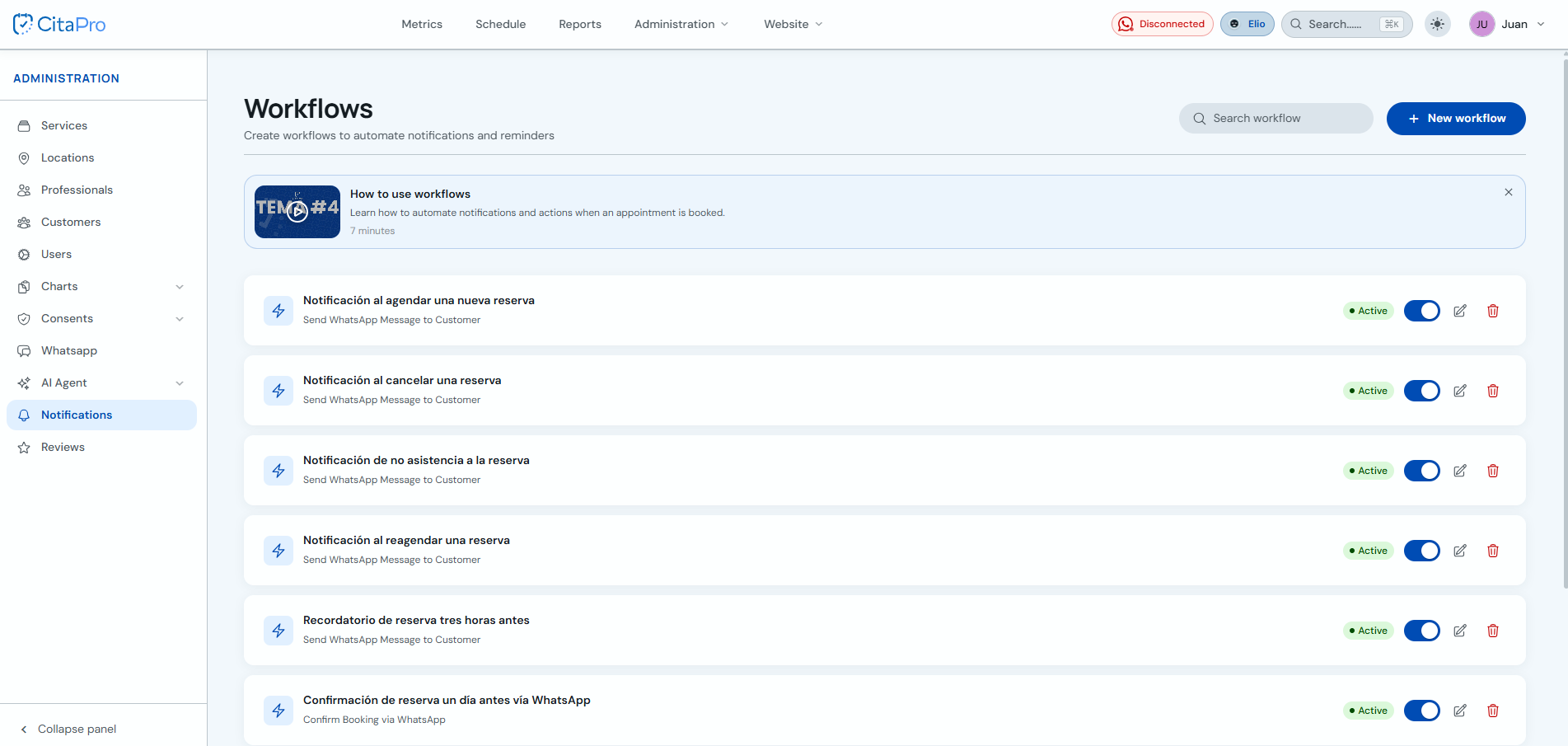
Go to Administration → Notifications → Workflows and click "+ New workflow".
-
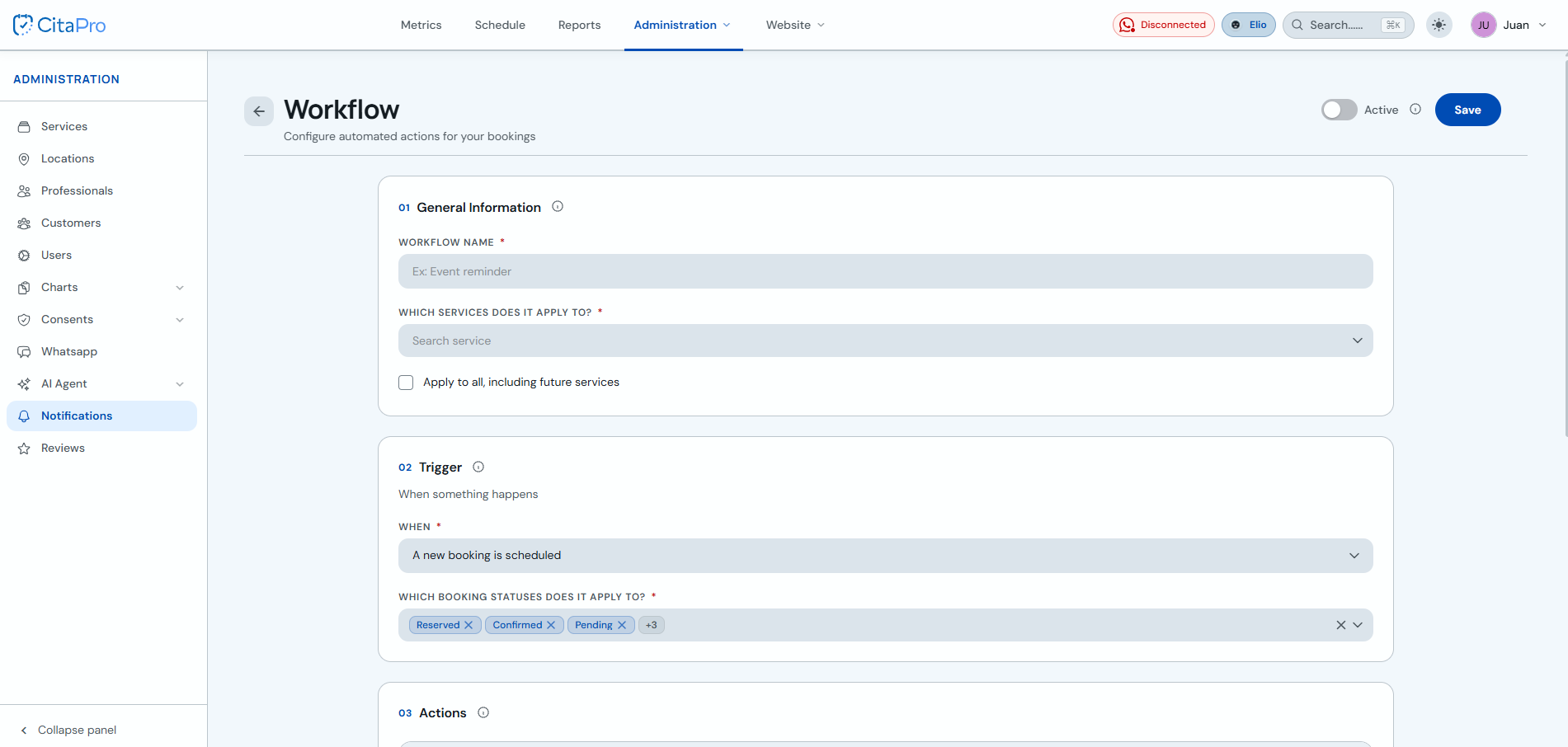
Under "General information", enter the workflow name and choose which services it applies to. Under "Trigger", select when it runs (e.g. when a new booking is scheduled) and booking statuses.
-
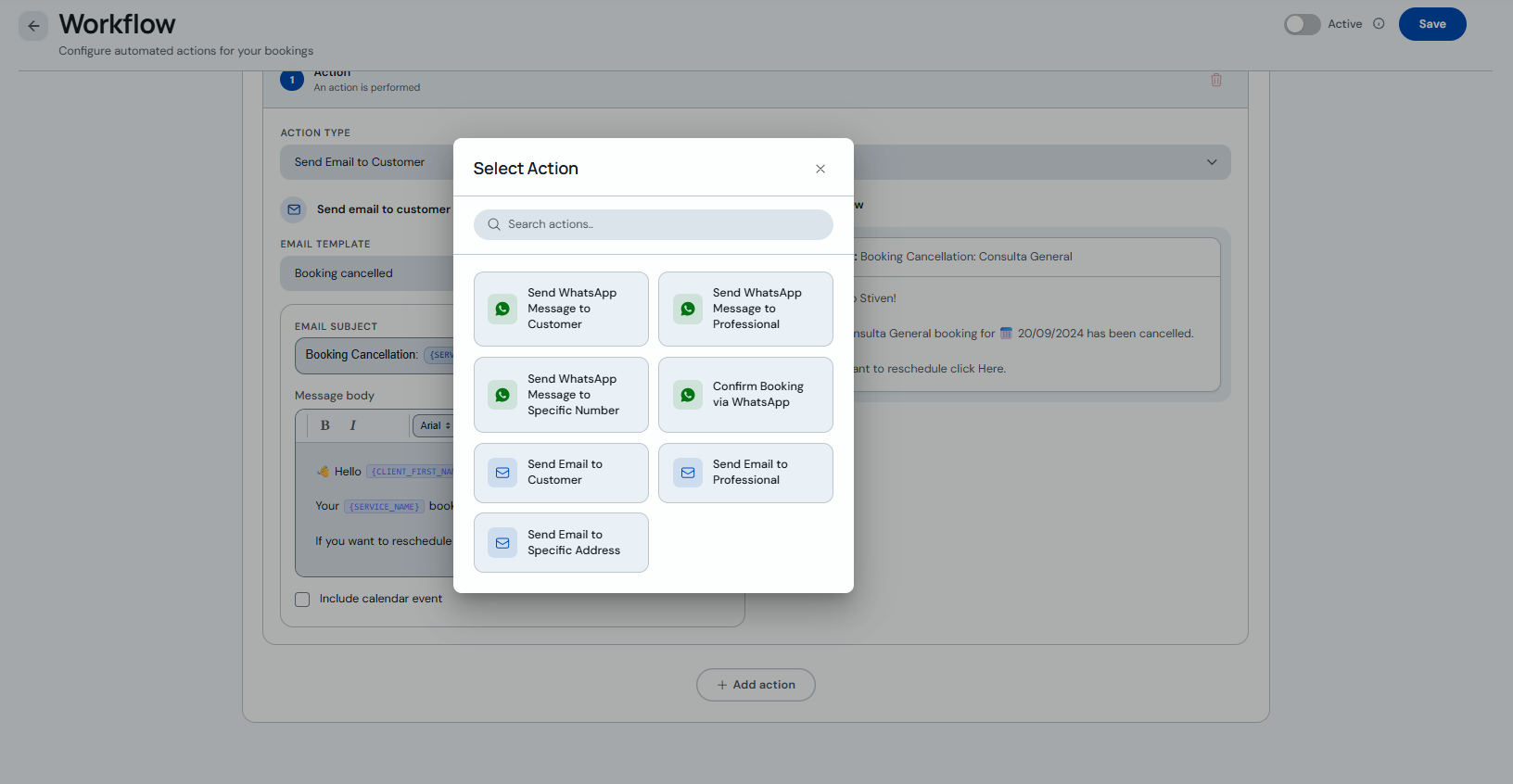
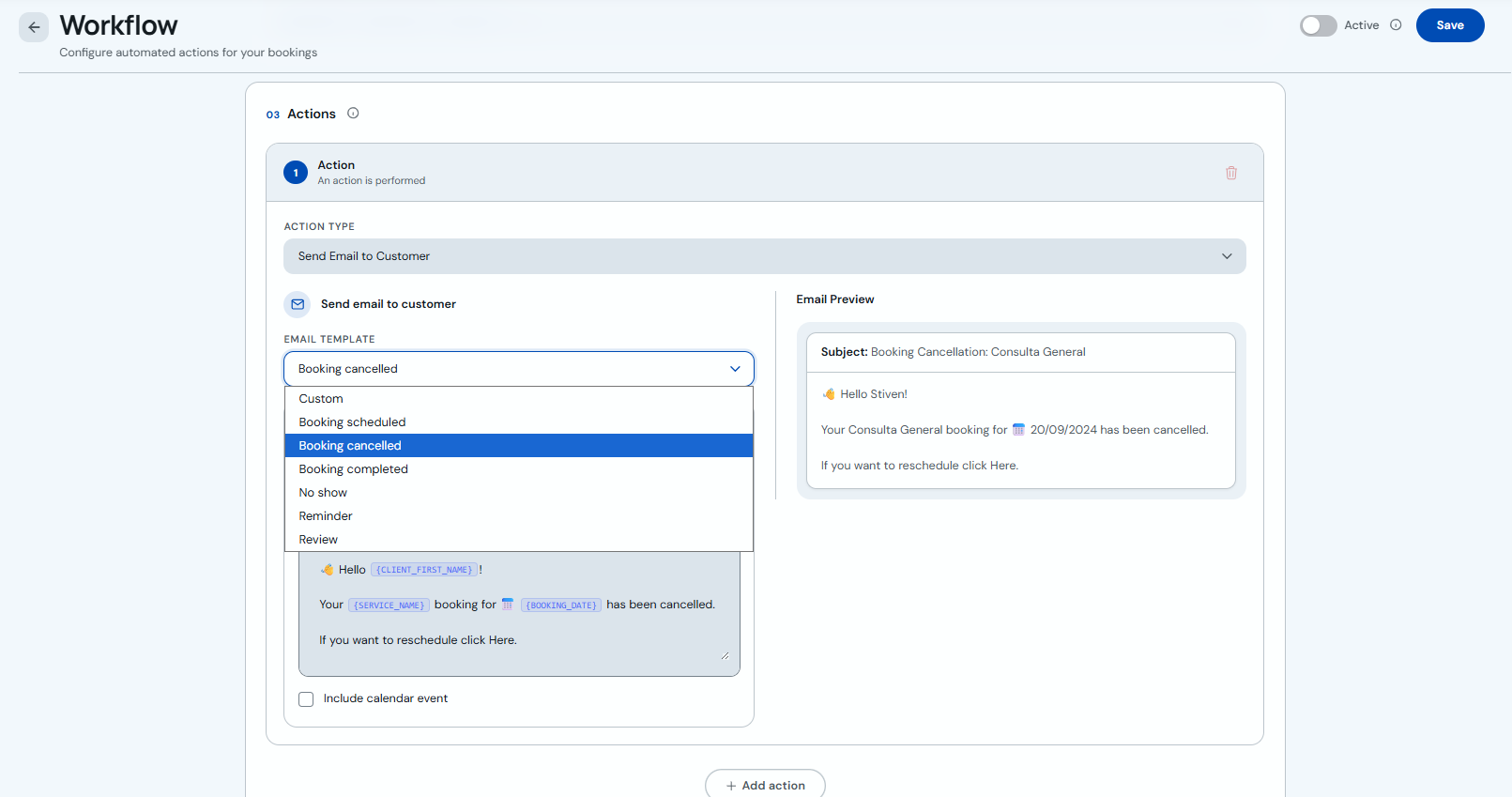
Under "Actions", click "+ Add action" and choose the type in the modal (WhatsApp to client, email to professional, confirm booking, etc.).
-
You can also change the action type from the "Action type" dropdown on each configured step.
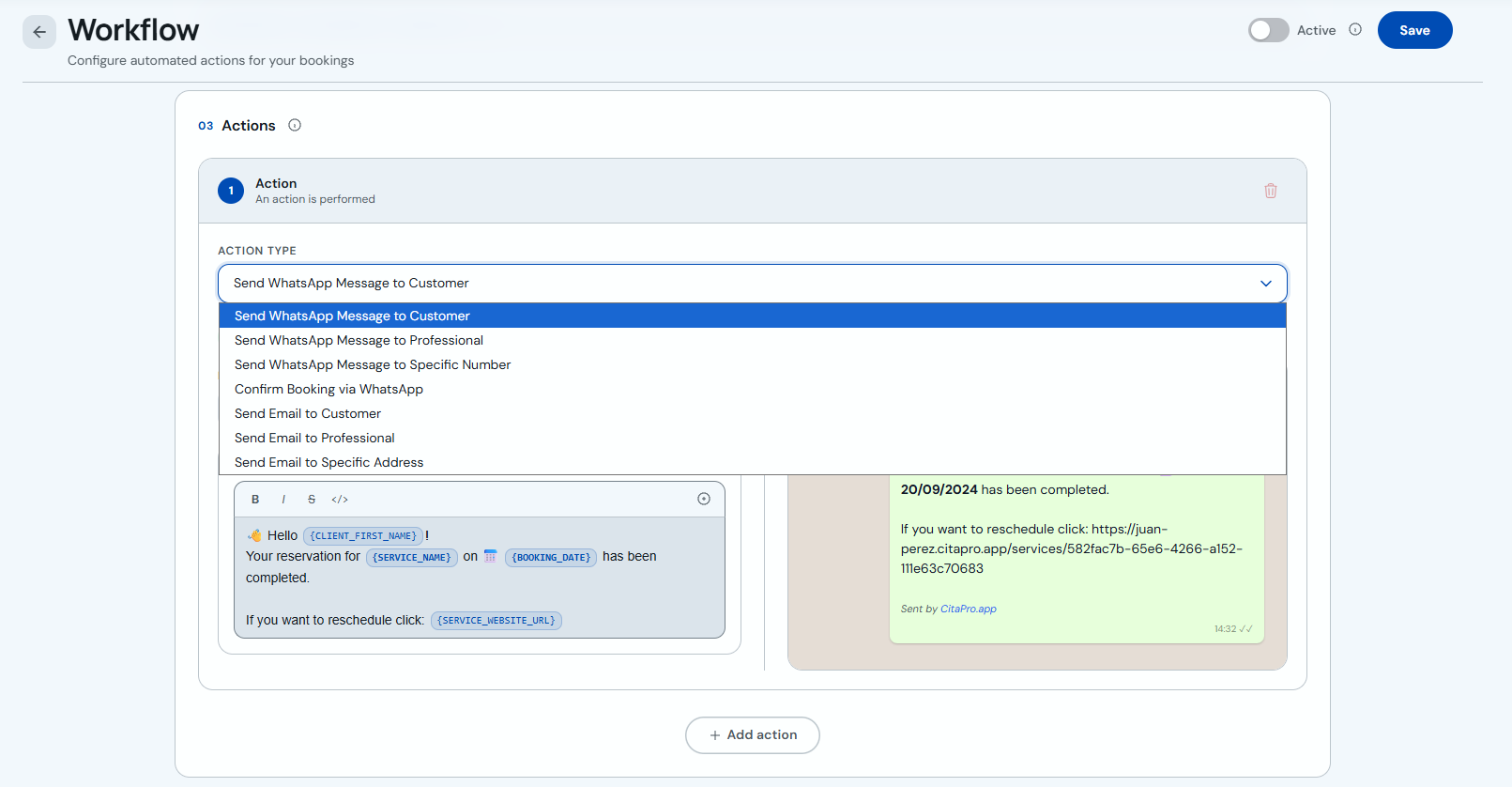
-
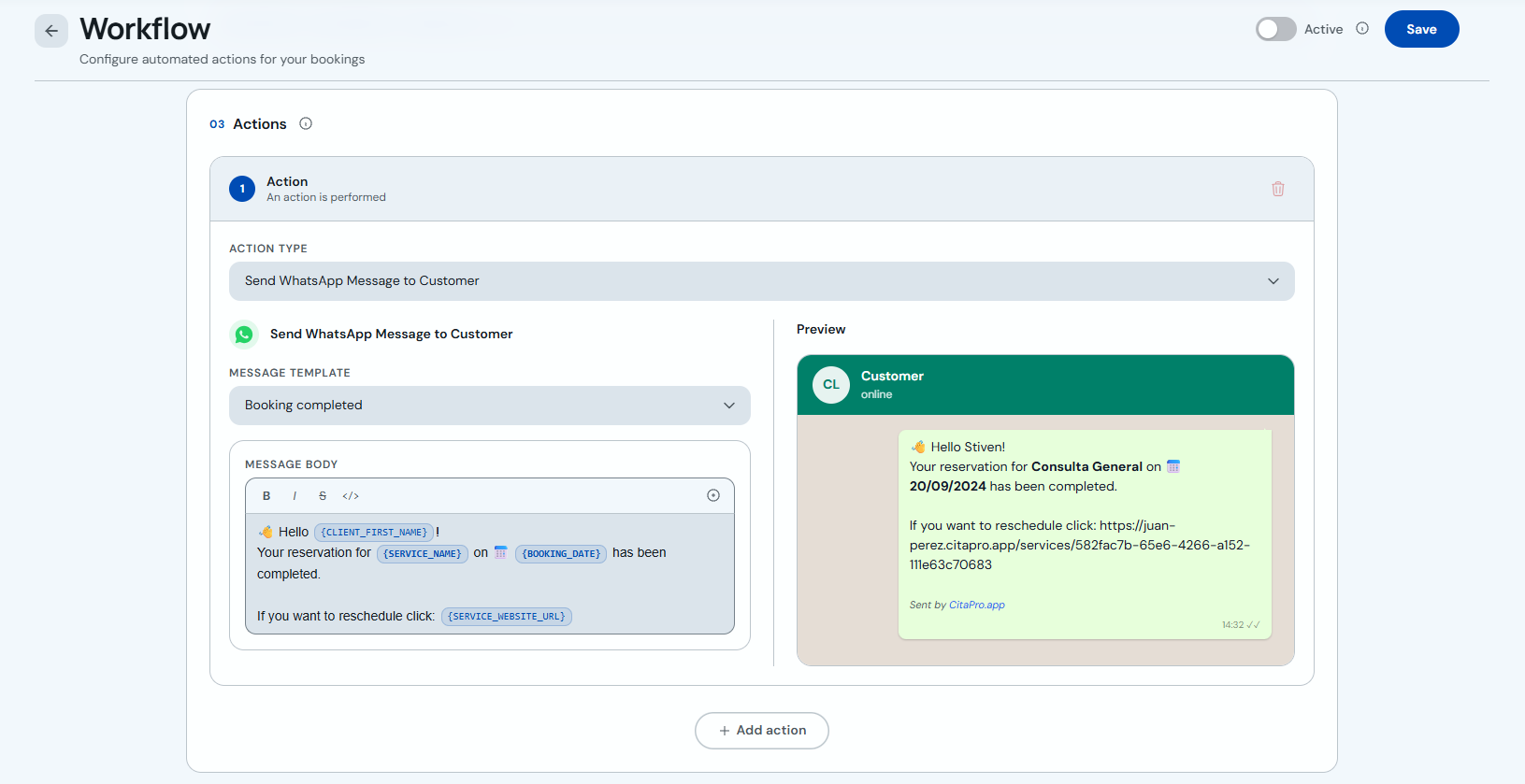
For WhatsApp: choose a template or customize the message with variables (client name, service, date). Check the preview on the right.
-
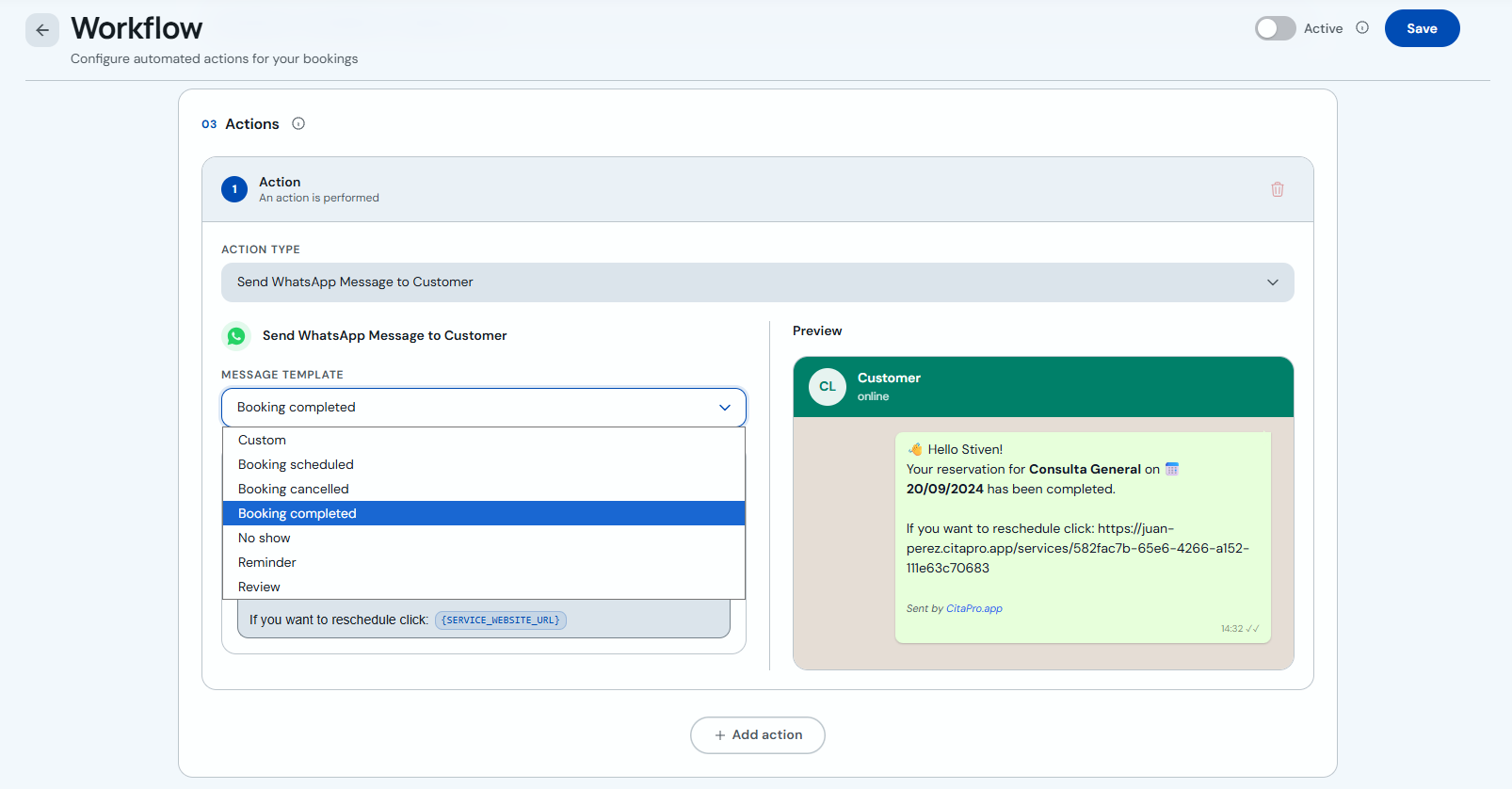
Templates include scheduled, cancelled, completed bookings, reminders, reviews and more. You can also use "Custom".
-
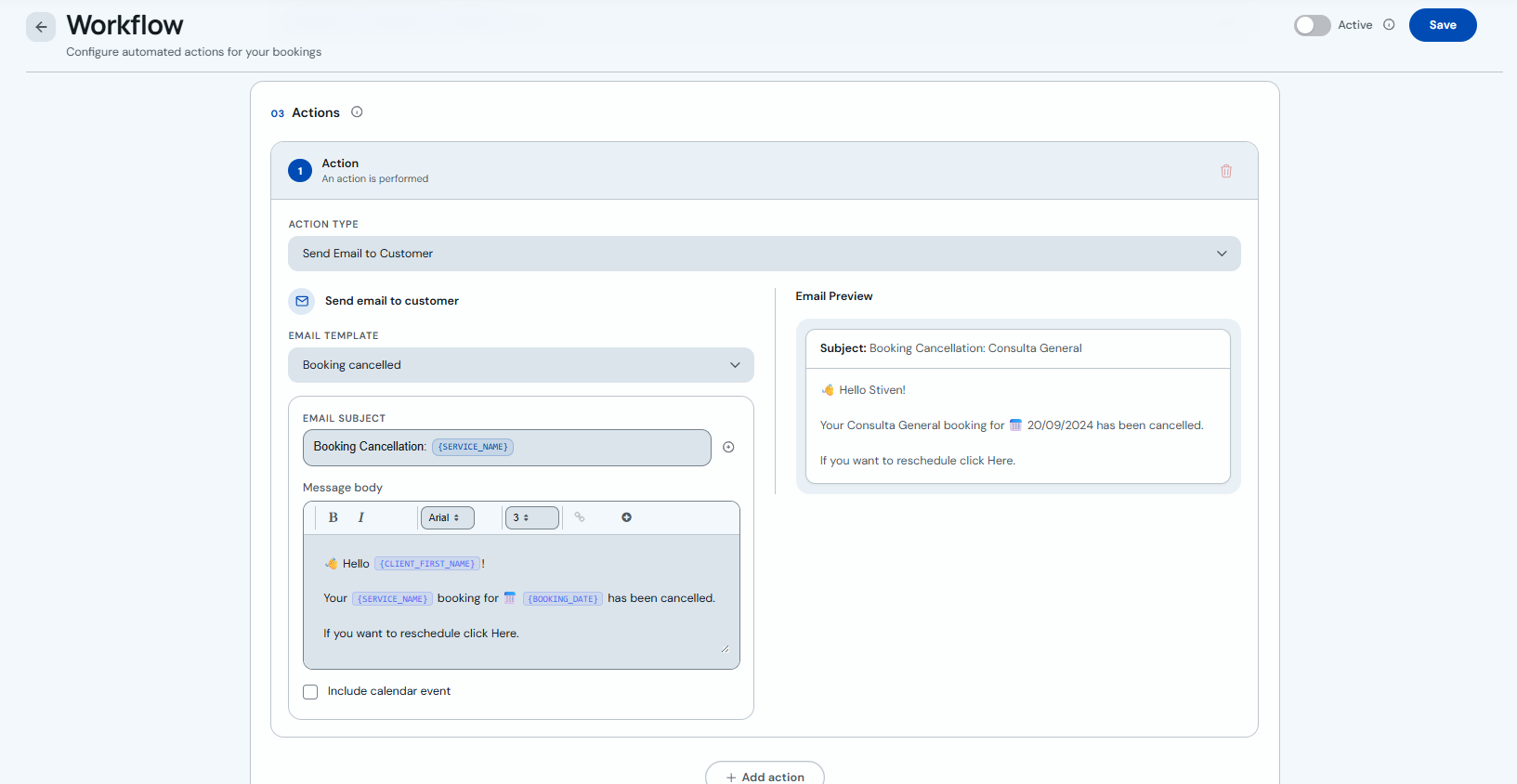
For email: select "Send email to client" (or another recipient), choose template, subject and body. Optional: include calendar event.
-
Choose the email template you need. You can add as many actions as you want. Enable the workflow with the "Active" toggle and click "Save".
Connect WhatsApp Business before using WhatsApp actions (see "How to connect WhatsApp Business" under WhatsApp & notifications).