

Sign the consent
When you send a consent, the client receives a link. From there they can read the PDF, draw their signature and confirm they agree.
-
The client receives an email (or message) with the document and a "Sign consent" button. They must click that link.
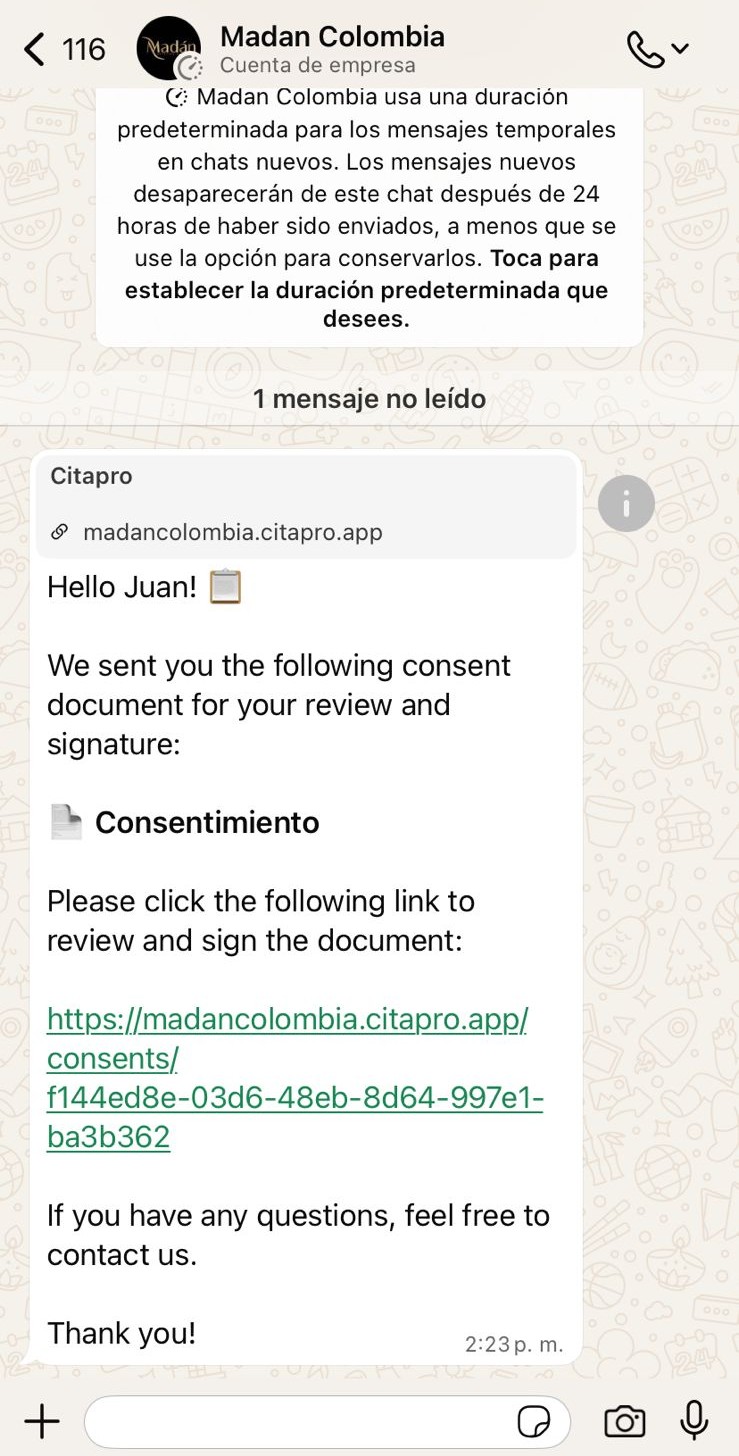
-
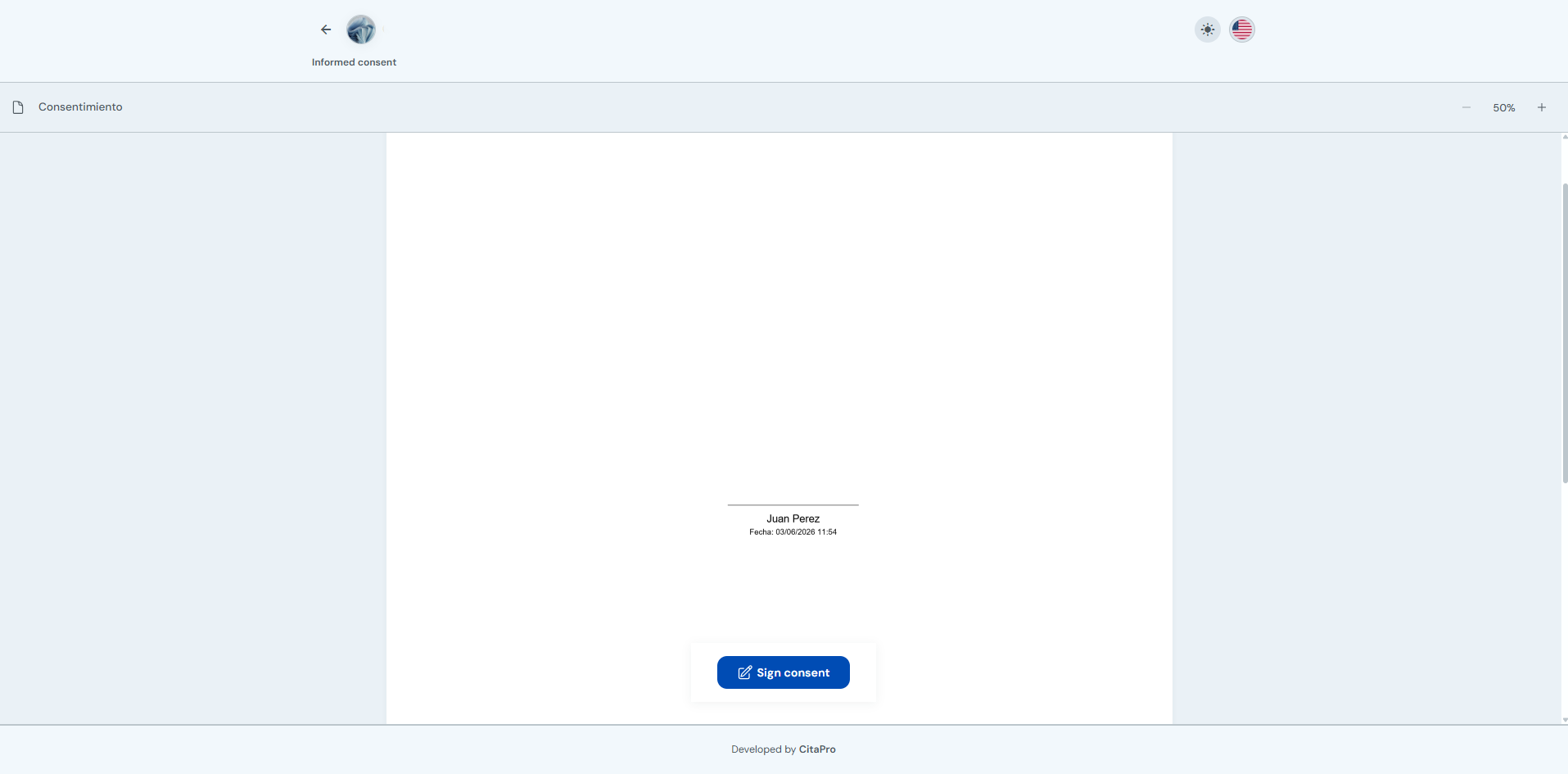
The document viewer opens. The client reviews the PDF and clicks "Sign consent" at the bottom.
-
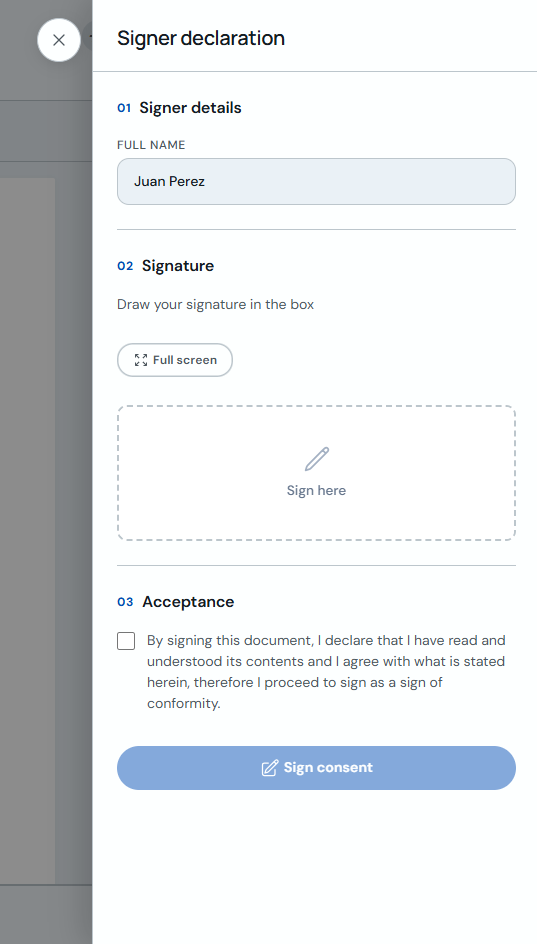
Under "Signer's declaration" they confirm their name, draw their signature in the box and check the acceptance box.
-
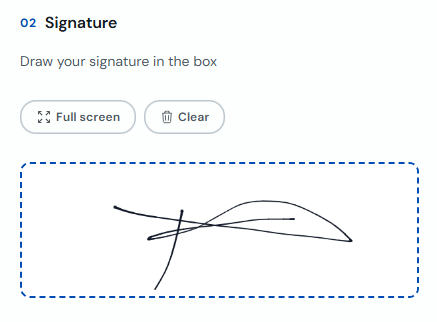
Draw the signature in the box. They can use "Full screen" for more space or "Clear" to sign again.
-
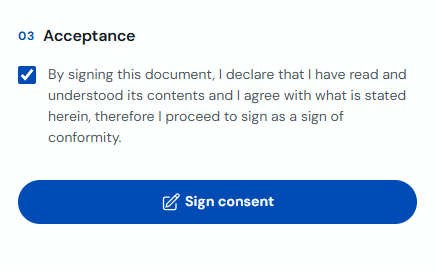
Check the box confirming they read and understood the document, then click "Sign consent" to confirm.
-
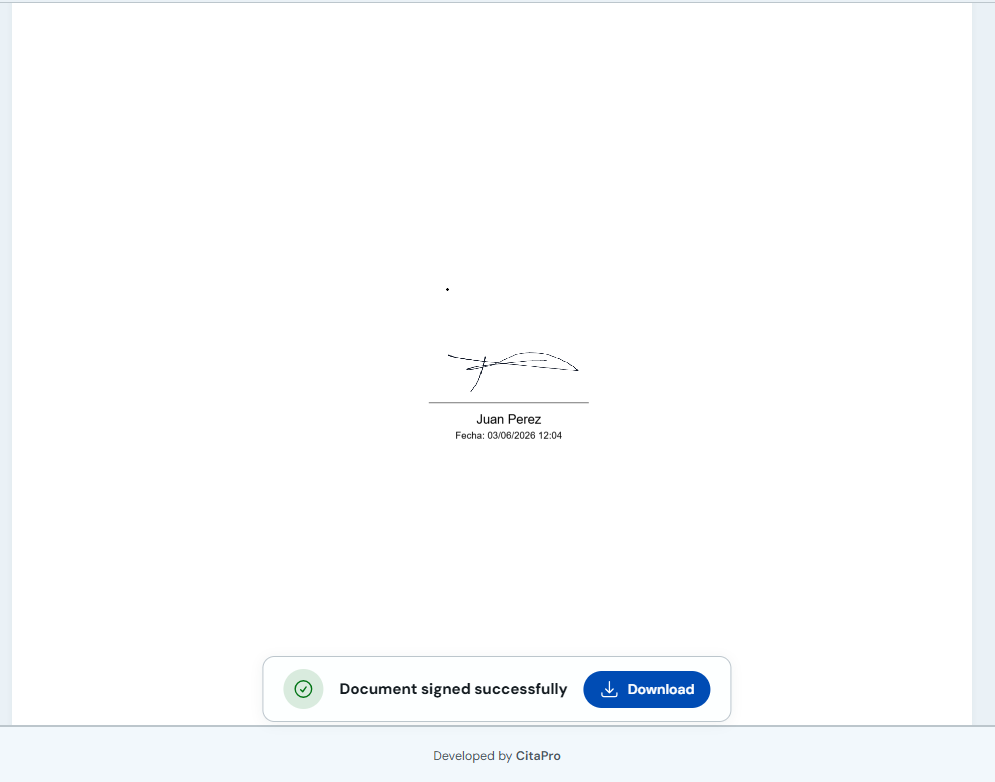
When signing is complete you will see "Document signed successfully". The client can download the signed PDF with "Download".
Share this article with clients if they have questions when signing. You can track request status in the client profile or appointment, Consents tab.