

Clear interest or unfinished booking
Automated follow-ups do not recover every abandoned chat: the AI Agent sends them when someone stopped replying at a key moment. They apply if the client showed clear interest in a service (questions about prices, duration, availability, treatment types, etc.) or was booking an appointment (choosing date, time, professional or confirming details) but did not finish. This feature is available starting from the Business+ plan.
-
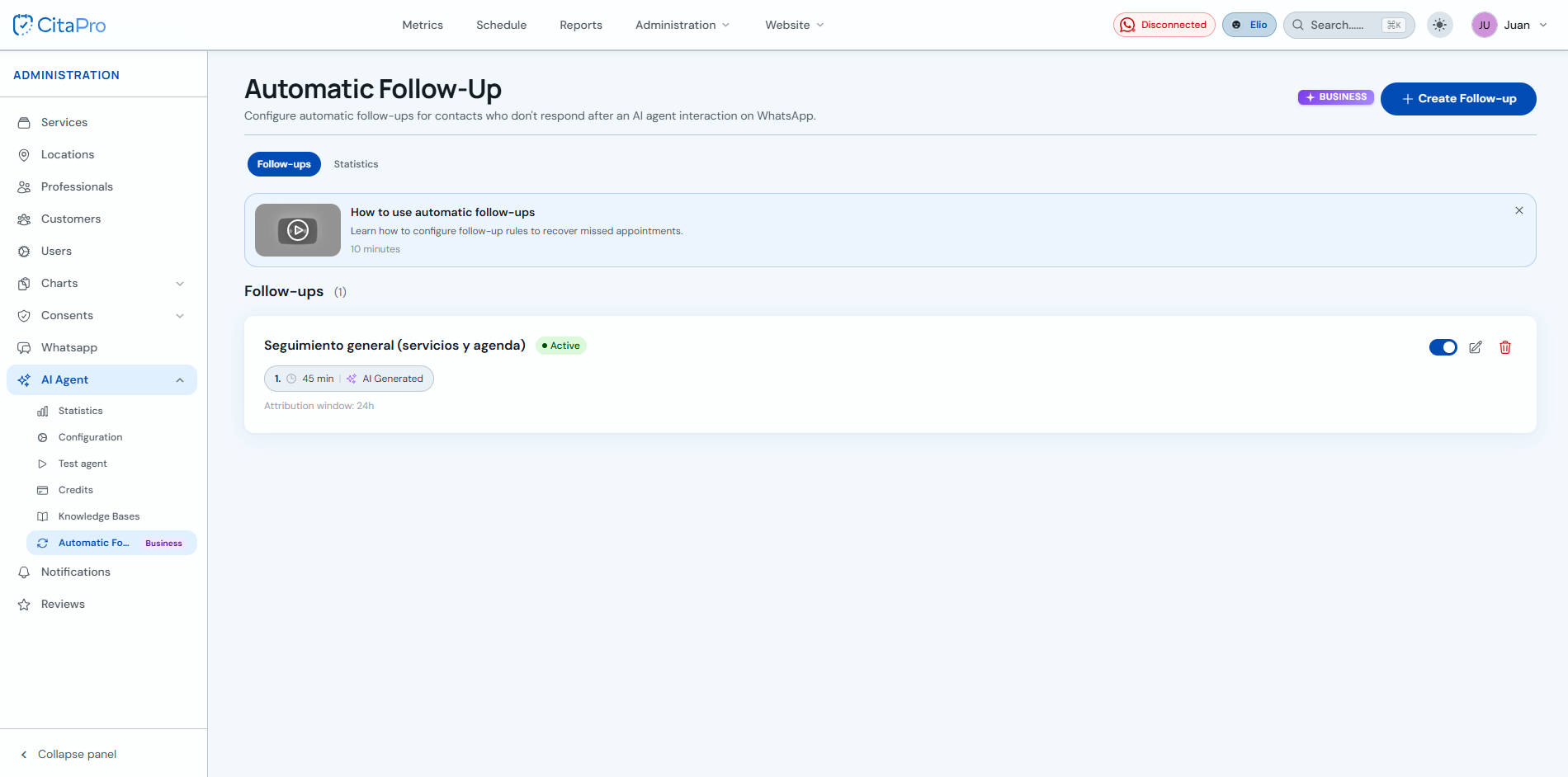
Go to Administration → AI Agent → Follow-up. On the "Follow-ups" tab review existing ones (status, wait time, message type) and click "+ Create Follow-up".
-
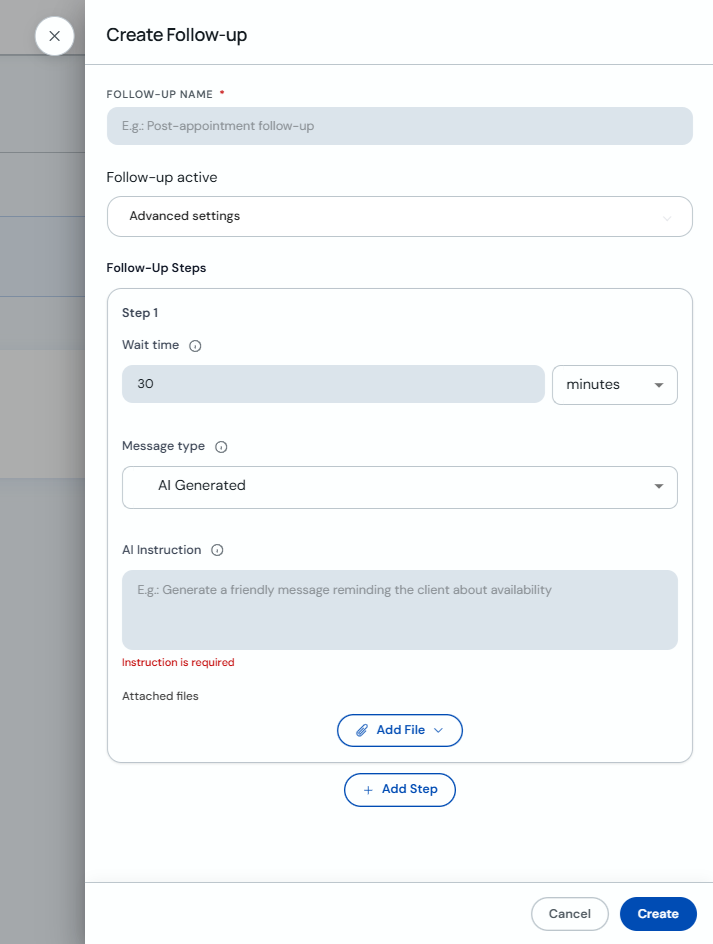
In the "Create Follow-up" modal enter a name (e.g. post-consultation follow-up). Under "Follow-up active" leave it on if you want to use it right away.
-
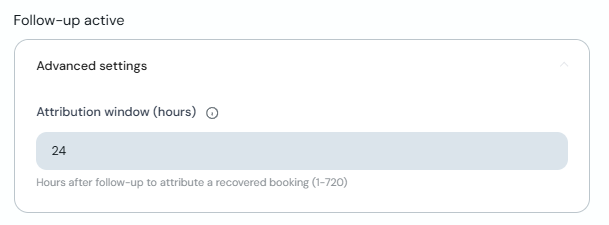
Open "Advanced settings" and set "Attribution window (hours)": how many hours after the follow-up a recovered booking is credited (1–720). The default is often 24 h.
-
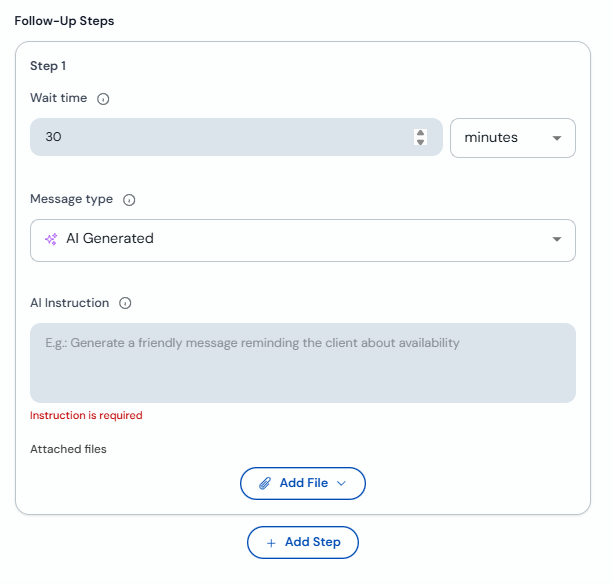
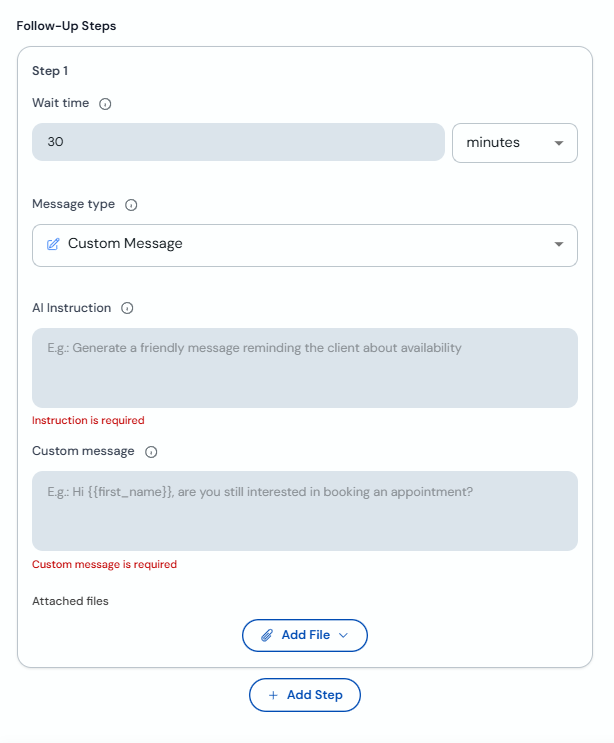
Under "Follow-up Steps" configure Step 1: wait time (e.g. 30 minutes) and type "Generated by AI". In the instruction ask for a short WhatsApp message: warm, professional, inviting to book or answer questions, with exactly two emojis. You can attach files and use "Add Step" for more attempts.
-
For fixed text, choose "Custom message" and write the message (you can use variables like {{first_name}}). Fill in the AI instruction as well. Click "Create" to save.
In the instruction, state whether the scenario is service interest or an unfinished booking and what action you want (book, choose a time, answer questions). To measure results, see the article "View automated follow-up statistics".