

Agent behavior
Under "AI Agent Configuration" you set when it responds, how it talks to your clients and which contacts to ignore.
-
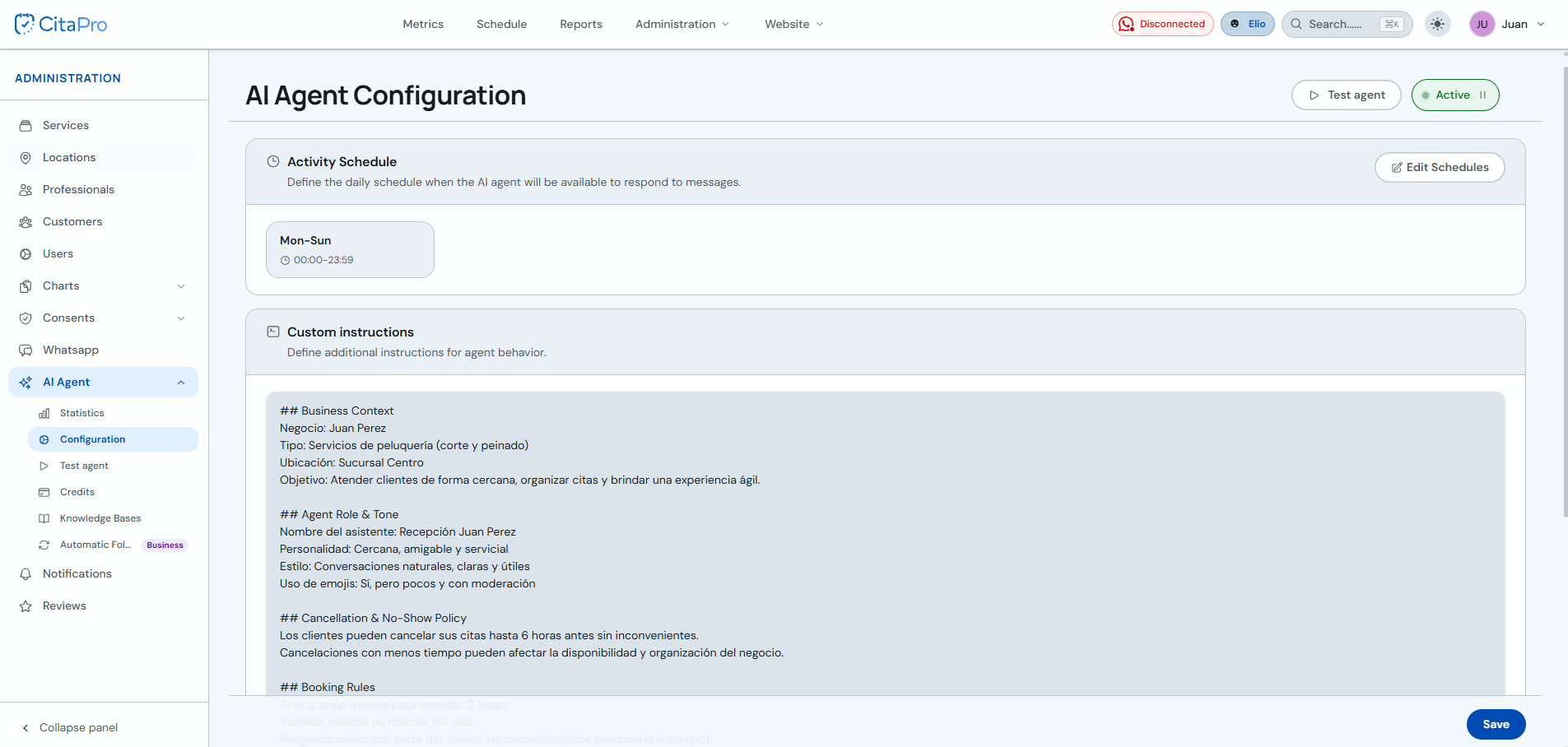
Go to Administration → AI Agent → Configuration. Use the "Active" toggle to enable or pause the agent.
-
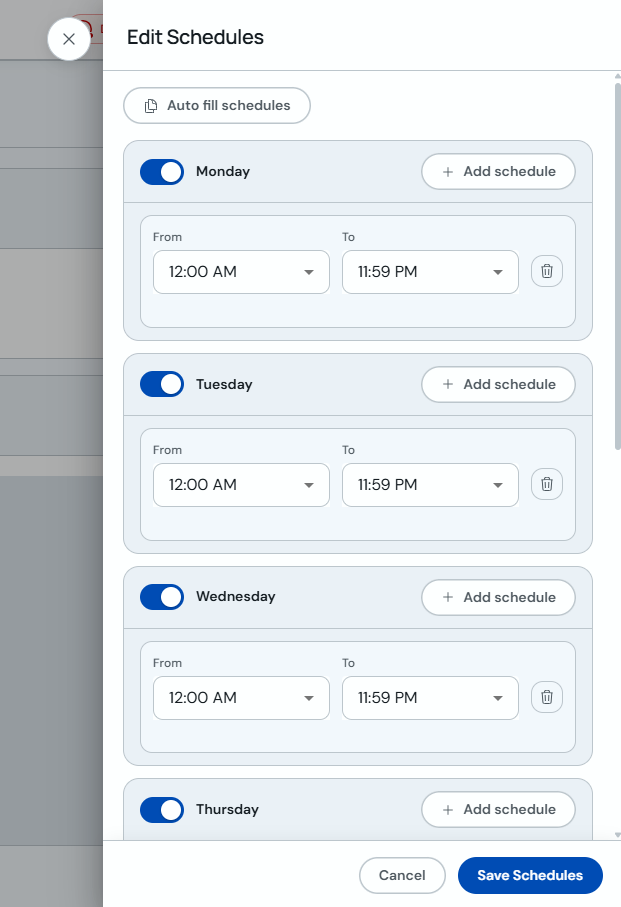
Under "Activity schedule", click "Edit Schedules". Enable the days you need, set From/To ranges (you can add several per day) or use "Auto-fill schedules". Save with "Save Schedules".
-
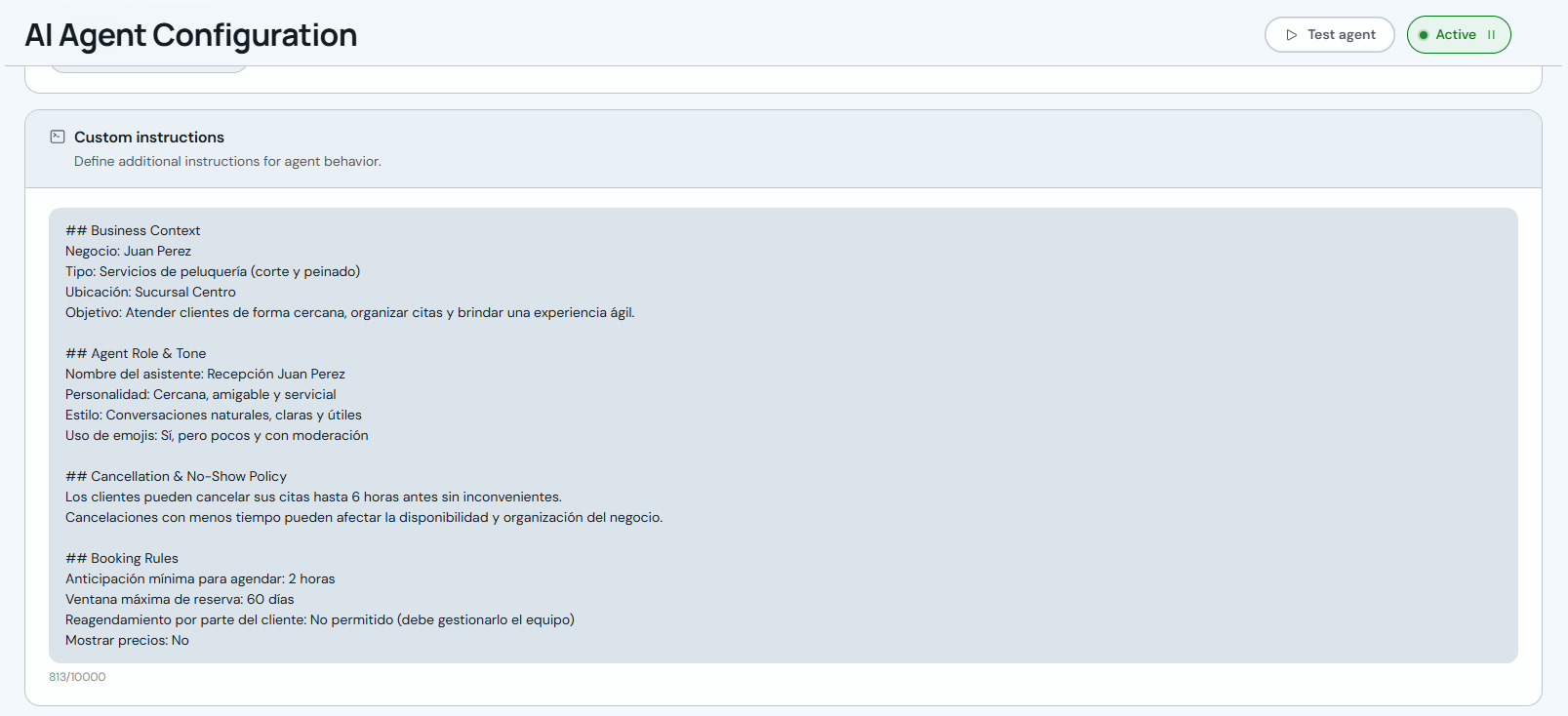
Under "Custom instructions", write your business context, assistant tone and rules (cancellations, bookings, prices, etc.). You can use ## headers as in the example.
-
Under "Ignored numbers", add phone numbers in international format that should not receive automatic agent replies (e.g. internal staff or vendors).

-
When you're done, test the agent in the simulator to see how it would respond with these settings before enabling it on WhatsApp.
The clearer your instructions (hours, services, policies), the better the agent will respond. Connect WhatsApp first if you haven't already.