

Send from the client
From the client profile you can send a consent document already created in Forms. The client will receive it through the channels you choose to sign it.
-
Go to Administration → Clients and open the client profile (eye icon in Actions).
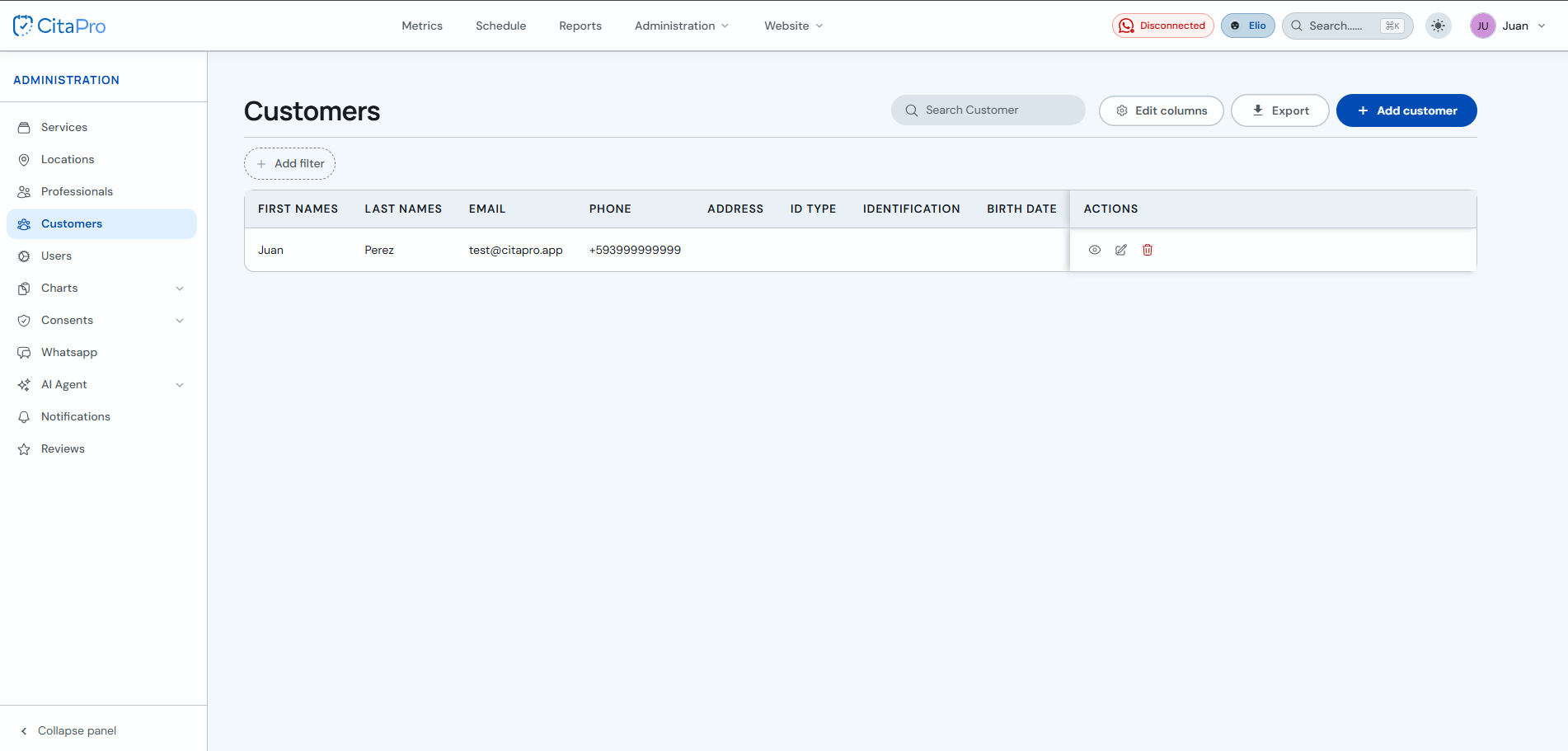
-
In the client profile, select the "Consents" tab and click "Send consent".
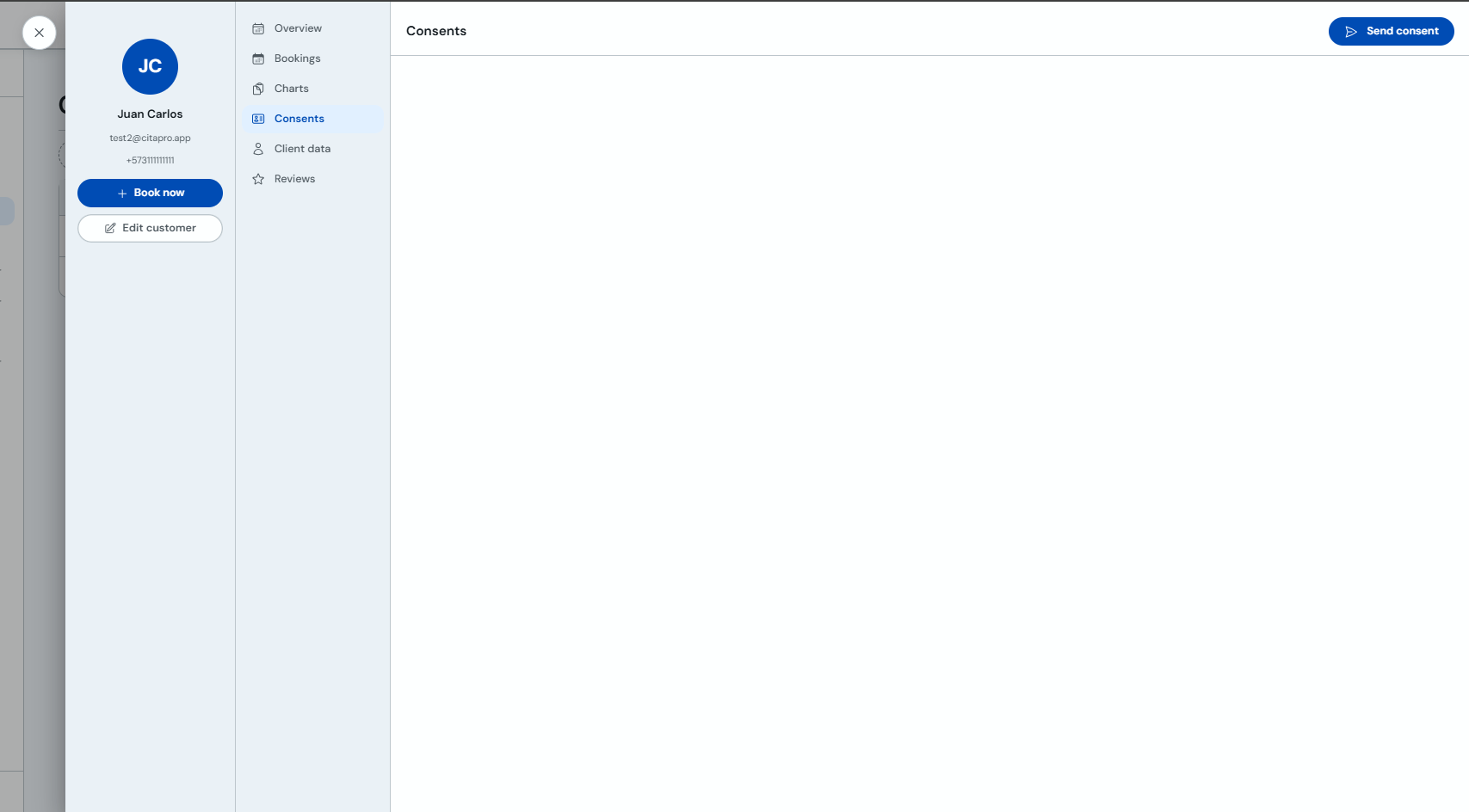
-
Choose a document under "Available documents" or "Create new document" if you want to design and send a new one.
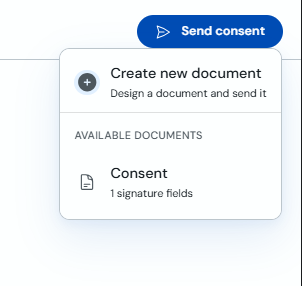
Send from the calendar
If the client already has an appointment, you can send the consent without leaving the calendar: open it, edit it and use the Consents tab.
-
On the calendar, click the client's appointment to view the booking details.
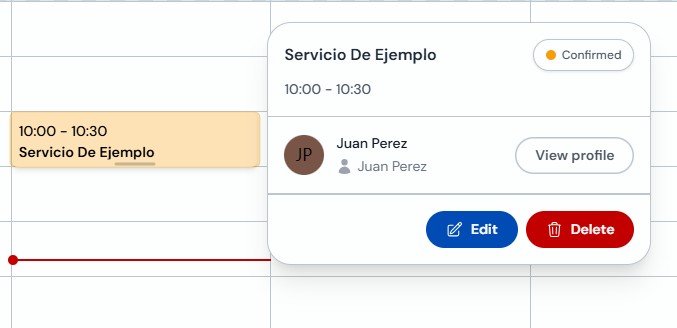
-
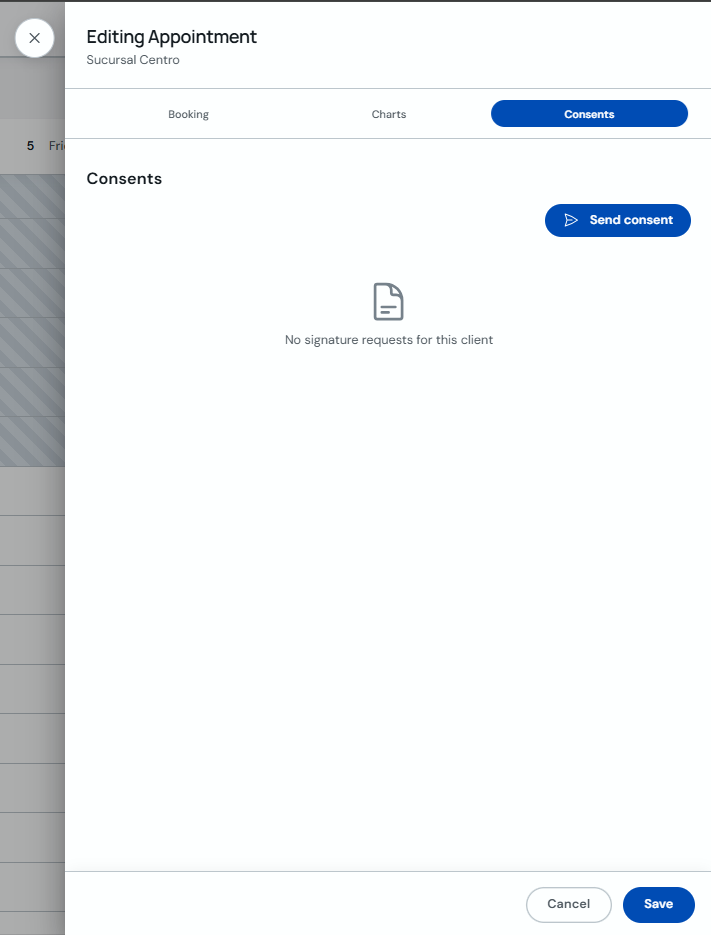
Click "Edit" and, in the modal, open the "Consents" tab. Click "Send consent".
-
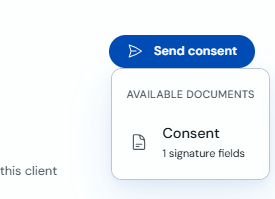
Choose a document under "Available documents".
How the client receives the message
Whether you send from the client profile or the calendar, the process is the same: after choosing the document, open "Send document for signing", select email and/or WhatsApp and confirm. That is how the client gets the link.
-
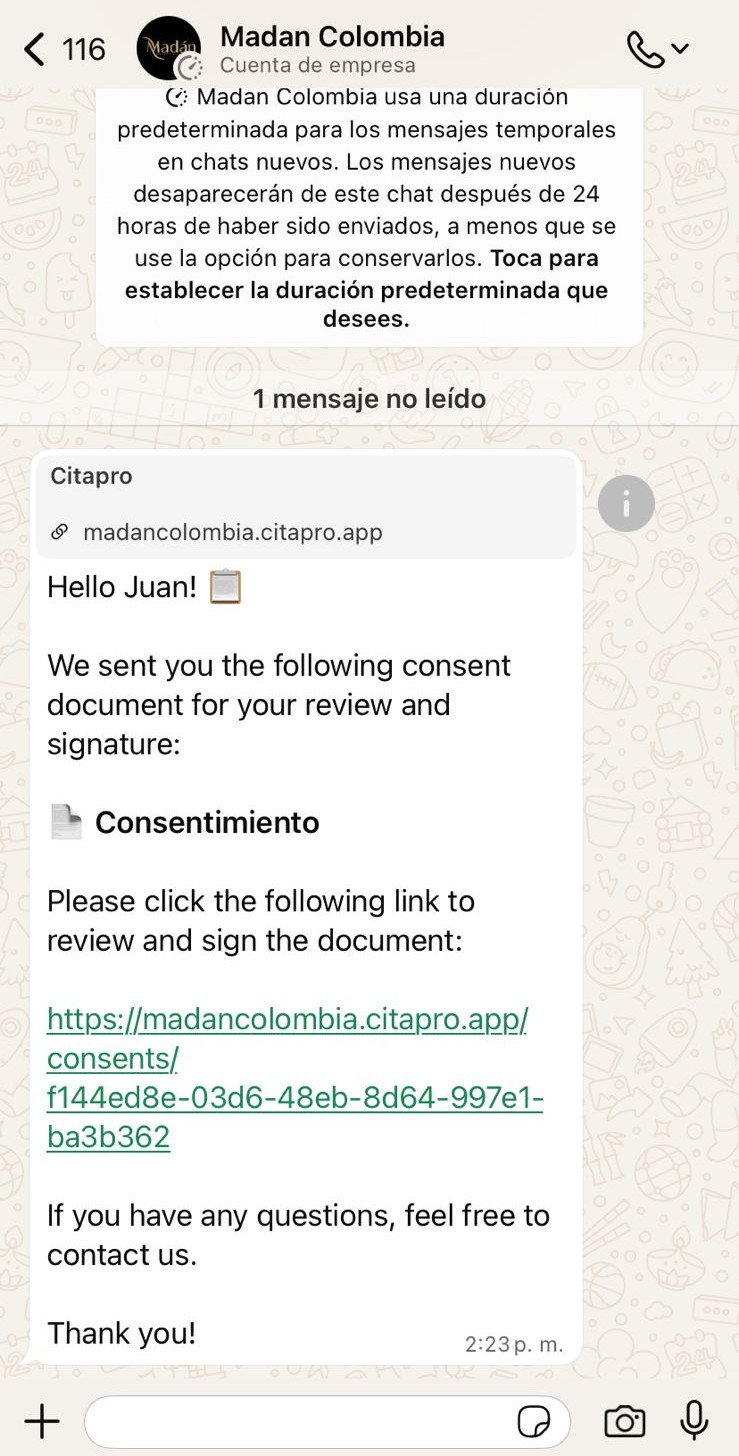
If WhatsApp is enabled, the client receives a message with a greeting, the document name and the link to review and sign.
-
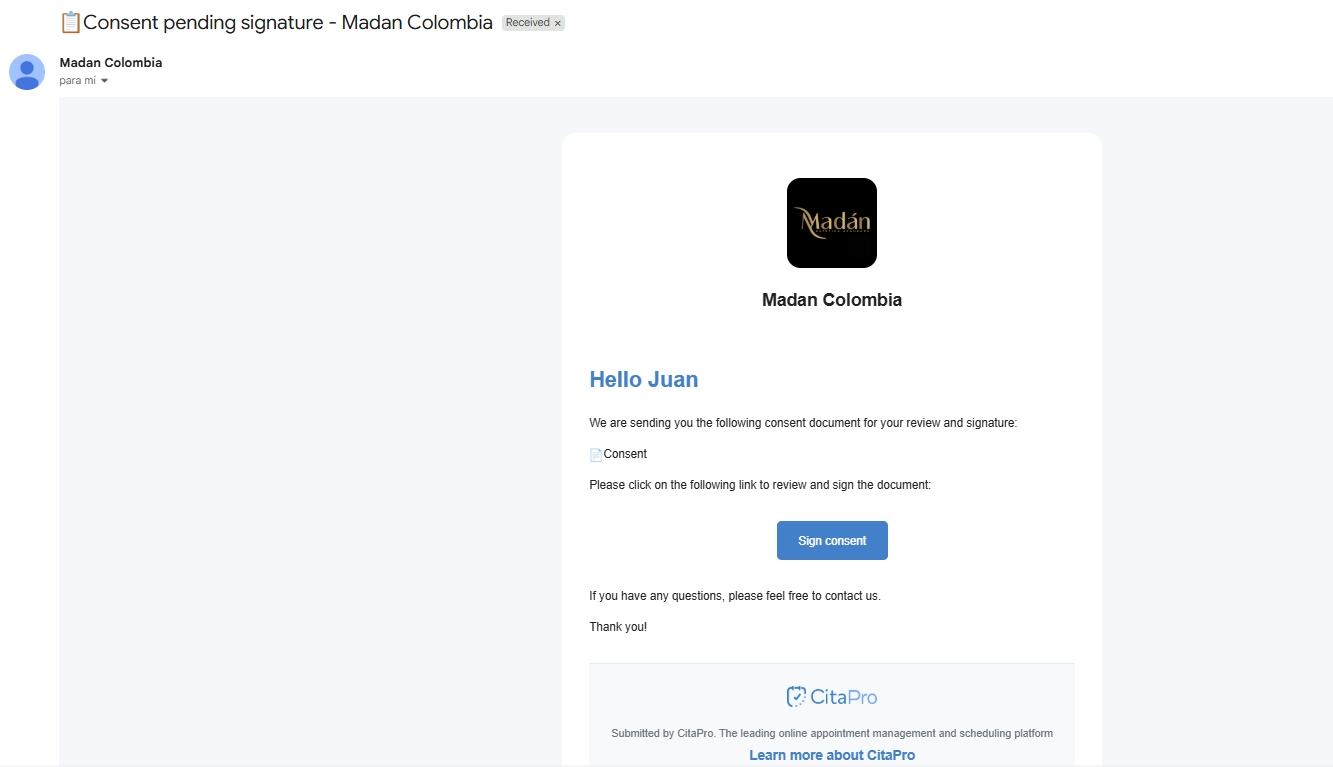
If email is enabled, they receive an email with subject "Consent pending signature" and a "Sign consent" button.
Create the document first under Consents → Forms. Make sure the client has an email or phone number for the channel you use. To see how signing works, read How to sign a consent document.